
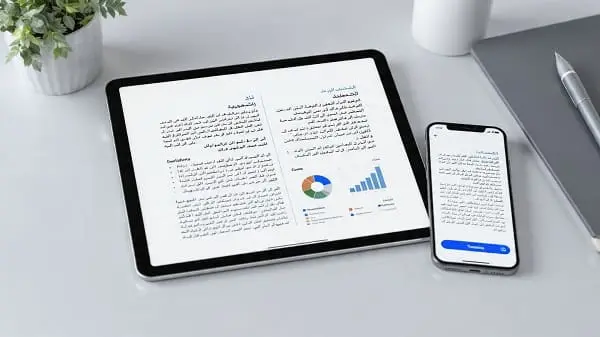
Learn how to translate PDFs without formatting issues using free tools and simple workflows. This 2025 guide covers OCR for scans, DOCX conversions, step-by-step methods, comparison tables, pro tips, and troubleshooting to keep tables, images, headings, and layout intact.
When PDF Translation Goes Wrong
Have you ever tried to translate a PDF only to end up with a messy, broken file? I have. I remember downloading a 50-page PDF research paper in Spanish that I needed for my university project. I figured it would be as simple as uploading it to an online translator. Instead, the result was a text dump—no tables, no images, no headings. The carefully designed format vanished, leaving me with something that looked like scrambled notes.
If you’ve faced this frustration, you’re not alone. PDFs are notorious for being tricky. They’re designed to preserve formatting across devices, but that same feature makes them hard to edit or translate. The good news? There are reliable ways to translate PDFs without formatting issues—and many are free if you know what to use and how to use it.
In this guide, you’ll learn why formatting breaks, which free tools actually work, and step-by-step methods to keep your PDF readable and polished after translation.
Why Formatting Gets Lost in PDF Translation
Before we dive into solutions, it helps to understand why PDF translation often gets messy.
- Fixed layout: Unlike Word docs, PDFs “lock” content into place. Fonts, tables, and images are embedded. Many translators extract text then fail to reflow it back into the original layout.
- Scanned PDFs (images of text): If there’s no OCR (optical character recognition), a tool simply sees a picture—not words it can translate.
- Complex design: Columns, bullet lists, footnotes, charts, and forms can scramble if a translator doesn’t understand page structure.
- Font encoding: Special characters (accents, CJK, RTL scripts) may break if fonts aren’t embedded or mapped correctly.
- Language direction: Right-to-left languages (Arabic/Hebrew) rely on direction marks. Losing them causes reversed phrases or punctuation.
The core challenge isn’t just the translation—it’s maintaining layout integrity. Choosing the right tool and workflow is essential.
Quick Start: Three Fast Ways to Translate PDFs (No Mess)
- Best balance (accuracy + layout): Convert PDF to DOCX (iLovePDF/Smallpdf) → translate DOCX in DeepL → export to DOCX → finalize in Word → save as PDF again.
- For scanned PDFs: Run OCR (OnlineOCR, Google Drive → Open with Google Docs) → clean obvious line breaks → translate DOCX in DeepL → export and re-PDF.
- One-click browser option: Try DocTranslator (online) for simple-to-medium PDFs; it often preserves images, headings, and tables remarkably well for free.
If one path fails, combine tools. Stacking a good converter with a good translator often beats any single tool.
Step-by-Step: Translate PDFs Without Formatting Issues
Follow this roadmap to keep your PDF’s structure intact while getting an accurate translation.
Step 1: Identify Your PDF Type
- Editable PDF (exported from Word, InDesign, Google Docs): easier to preserve formatting.
- Scanned PDF (image-based): run OCR first to convert to real text.
Step 2: Choose a Reliable Free Tool
Tools vary by strength. DeepL and DocTranslator are strong on both language and layout; Google Translate is fast for rough content; MateCat is best for complex or long documents (with a learning curve).
Step 3: Convert If Needed
Many tools preserve formatting better when you translate DOCX instead of PDF. Use iLovePDF, Smallpdf, or Google Drive (Open with Google Docs) to convert PDF → DOCX, then translate.
Step 4: Translate in Batches (for large files)
Long PDFs can break or time out. Split the file into chapters or logical sections (e.g., 20–50 pages per batch) to improve accuracy and stability.
Step 5: Cross-Check and Proofread
Compare key sections in a second tool (e.g., DeepL + Google Translate). Double-check figures, legal terms, and tables. Ensure names and brands remain correct.
Step 6: Export in the Right Format
Finalize in Word/LibreOffice to restore styling (headings, lists, tables), rebuild the table of contents, then export to PDF once you’re satisfied.
Best Free Tools to Translate PDFs Without Formatting Issues
Here’s a side-by-side comparison of popular free (or free-tier) options for translating PDFs without losing formatting.
| Tool | Formatting Preservation | Ease of Use | Limitations | Best For | Cost |
|---|---|---|---|---|---|
| DeepL (Free) | ★★★★☆ | Simple upload (best via DOCX) | File-size limits on free tier | Accurate translations with good layout | Free / Pro |
| DocTranslator (Online) | ★★★★☆ | Upload & auto-detect | Ads; occasional size limits | Everyday users needing layout intact | Free / Paid |
| Google Translate (Document) | ★★☆☆☆ | Very easy | Tables and headings may flatten | Quick text understanding | Free |
| Microsoft Word (Translate) | ★★★☆☆ | Open PDF in Word → Translate | Needs clean PDF→DOCX conversion | Office users; simple PDFs | Included with Word |
| MateCat (CAT tool) | ★★★★☆ | Professional interface | Learning curve | Long/technical docs; consistency | Free |
| OnlineOCR + Translator | ★★★☆☆ | Two-step process | Quality depends on scan | Scanned PDFs (image-based) | Free |
| iLovePDF/Smallpdf + DeepL | ★★★☆☆ | Convert first, then translate | Occasional layout cleanup | Combining free tools for better output | Free / Paid |
Tool Reviews in Detail (What Works Best and When)
1) Google Translate — Fast but Weak on Formatting
Google’s document upload feature is great when you just need to understand content quickly. However, it often strips structure—headings, bullet points, and tables may flatten into plain text. If you only need a rough translation for reference, it’s fine. If you need a polished PDF, look elsewhere.
Verdict: Good for quick reads; not for layout fidelity.
2) DeepL — Impressive Accuracy and Solid Layout
DeepL is known for natural, context-aware phrasing. While you can upload PDFs, you’ll usually get the best layout fidelity by converting PDF → DOCX first, then translating. Headings, tables, and footnotes often survive better via DOCX. Free version has file-size limits; Pro adds privacy controls and bigger uploads.
Verdict: Best balance of quality + formatting for most users.
3) DocTranslator — The Hidden Gem for Layout
DocTranslator works entirely in the browser. For many simple-to-medium PDFs, it preserves images, headings, and table structure surprisingly well. It’s a popular choice for students and professionals who want minimal setup and decent formatting. Ads and limits exist on the free tier.
Verdict: Great “one-and-done” option for many PDFs.
4) Microsoft Word’s Built-in Translator
Word can open PDFs (by converting them to DOCX) and translate within the app. Results are decent—especially if the original PDF was generated from Word. Complex layouts (e.g., multi-columns) may need manual cleanup. Still, if you already use Word, it’s worth trying.
Verdict: Convenient for Office users; best for simpler layouts.
5) OnlineOCR + Google Translate (or DeepL)
For scanned PDFs (images of text), OCR is required first. OnlineOCR is an easy way to produce a DOCX you can then feed into DeepL or Google. Quality depends on scan resolution and clarity; you’ll likely need to clean line breaks and hyphens before translation.
Verdict: Necessary for scans; expect a cleanup pass.
6) MateCat — Free, Professional-Grade CAT Tool
MateCat treats documents as translation projects and segments text, which helps preserve structure and ensure consistent terminology. It’s powerful for long or technical PDFs (after conversion to DOCX). Expect a learning curve, but the results are excellent once you get used to the workflow.
Verdict: Fantastic for large, complex documents if you don’t mind learning a CAT tool.
7) Combining Tools (Pro Hack)
The most reliable method for tricky PDFs is to stack tools: convert PDF → DOCX with iLovePDF or Smallpdf, then translate the DOCX in DeepL or MateCat. This approach preserves the most structure while delivering accurate text.
Verdict: If one tool fails, use a two-step stack to win back layout and accuracy.
Advanced Workflows for Complex PDFs (Columns, Tables, Scans)
Multi-Column Reports and Magazines
- Convert PDF → DOCX (iLovePDF/Smallpdf).
- Open in Word → switch to Draft view to check reading order.
- Reflow columns to single column temporarily if needed.
- Translate DOCX in DeepL/MateCat.
- Restore columns and styles; export to PDF.
Heavy Tables and Charts
- Copy complex tables into Excel/Sheets, translate text within cells, then paste back.
- Translate chart labels/captions separately; keep original figures unchanged.
- Use consistent number/date formats in the target language.
Scanned PDFs (Old Books, Faxes, Contracts)
- Run OCR (OnlineOCR, Google Drive → Open with Google Docs, or desktop OCR).
- Clean line breaks/hyphenation with find/replace (remove soft hyphens at line ends).
- Translate via DeepL/MateCat.
- Rebuild headings, lists, and TOC; export as PDF.
Forms and Fillable PDFs
- Export fields to DOCX if possible. Translate labels separately from field names.
- Recreate the form in Word/Acrobat after translation; keep interactive fields intact.
Vectorized Text (Text as Shapes)
- Some PDFs have text turned into vectors (outlines). OCR cannot read this.
- Try exporting the page to image and run OCR, or find the original source file (AI/INDD).
Windows, macOS, Linux: OS-Specific Workflows
Windows
- Use iLovePDF/Smallpdf to convert PDF → DOCX, then DeepL for translation.
- For scans, try OneNote OCR (copy text from picture) as a quick fix.
- Finalize in Word; export to PDF.
macOS
- Preview to check structure → convert via Smallpdf or Adobe online to DOCX.
- Translate via DeepL web/app; polish in Pages/Word; export to PDF.
Linux
- Use OCRmyPDF (Tesseract) for high-quality OCR on scans.
- Convert PDF → DOCX with LibreOffice or pandoc (for simpler layouts).
- Translate online (DeepL/DocTranslator); finalize in LibreOffice Writer → export to PDF.
Translate PDFs on Mobile (Android & iPhone)
Android
- Use Google Drive to upload PDF → open with Google Docs to convert (basic layout).
- Translate within Google Docs (Tools → Translate document) or paste sections to DeepL web.
- For better results, pre-convert to DOCX on desktop, then translate/read on mobile.
iPhone/iPad
- Store PDFs in Files or iCloud Drive.
- Open in Pages/Word if possible; otherwise, use DeepL/DocTranslator in Safari.
- For robust formatting, convert to DOCX on desktop first, then finish on mobile.
Tip: Mobile is fine for short/medium documents. For long, complex PDFs, desktop workflows preserve formatting better.
Preserve Layout: Headings, TOC, Images, Tables, RTL
- Work in DOCX: Convert PDFs to DOCX before translation. Apply Heading 1/2/3 styles so the translator respects structure.
- Rebuild TOC: After translation, regenerate the table of contents automatically from headings.
- Fix lists: Restore bullet/number styles if they were flattened.
- Images: Keep images embedded; translate captions and alt text separately.
- Tables: Ensure borders and cell alignment survive; split very wide tables across pages if needed.
- RTL languages: Confirm text direction settings; punctuation should mirror properly.
- Fonts: Use a font with broad Unicode coverage (e.g., Noto) to avoid missing characters.
Quality Control: Proofreading, Glossaries, and Consistency
- Pass 1 — Flow: Read a sample chapter for awkward phrasing; fix long sentences.
- Pass 2 — Names/brands: Ensure proper nouns and trademarks aren’t mistranslated.
- Pass 3 — Tables/figures: Verify units, decimal separators, and labels.
- Glossary: For technical PDFs, build a mini glossary (terms, acronyms) and standardize with find/replace.
- Consistency: Tools like MateCat maintain repeated phrasing and headings across long texts.
Privacy & Security: What to Upload and What to Keep Local
- Sensitive PDFs: Avoid free web tools for legal, medical, or confidential content. Prefer offline workflows or enterprise-grade services.
- Redact before upload: If you must use the cloud, remove PII or sensitive figures first.
- Check policies: Review your chosen tool’s privacy/retention policy—especially with sensitive documents.
- Local OCR: On Linux or desktop, OCRmyPDF + Tesseract keeps everything on-device.
Troubleshooting: Fix Common Problems Fast
“The translator flattened my layout”
- Convert PDF → DOCX and translate the DOCX instead.
- Reapply heading/list styles; rebuild TOC; then export to PDF.
“My PDF is scanned and unreadable”
- Run OCR (300 DPI+ recommended). Improve contrast and deskew pages before OCR.
- Remove soft hyphens and extra line breaks via find/replace.
“Tables are scrambled”
- Copy tables into Excel/Sheets to translate and tidy, then paste back.
- Keep numeric formats consistent across languages.
“Arabic/Hebrew direction looks wrong”
- Ensure the translated DOCX is set to RTL; check paragraph direction and punctuation.
“File is too large for free upload”
- Split the PDF into sections. Compress images or export a text-first version.
- Use DOCX translation in parts, then merge.
“Special characters are missing”
- Switch to a Unicode-friendly font (e.g., Noto family) and re-export.
- Embed fonts in the final PDF.
Real-Life Scenarios: Students, Travelers, Businesses
- Student (Brazil): Used DocTranslator to translate a French economics PDF. Instead of hours of copy-paste, she got a readable, well-structured document in minutes.
- Traveler (Japan trip): Used DeepL after converting a Japanese travel guide PDF to DOCX. Maps and tables remained intact, making planning easier.
- Small business (Germany): A startup received a supplier contract as a PDF. They converted to DOCX, ran it through MateCat for structure and consistency, then had a human review for legal accuracy.
FAQs
Can Google Translate keep PDF formatting?
Not reliably. It often flattens layout. Convert to DOCX and use DeepL or DocTranslator for better preservation.
What’s the best free tool for preserving layout?
DocTranslator and DeepL (via DOCX) generally provide the best balance of structure and accuracy for free users.
How do I translate a scanned PDF?
Run OCR first (OnlineOCR, Google Drive → Google Docs, or desktop OCR). Clean line breaks, then translate in DeepL or MateCat.
Is it safe to upload confidential PDFs?
For sensitive content, use offline tools or enterprise services with strict privacy policies. Avoid uploading confidential documents to free web services.
Can I translate PDFs directly on iPhone/Android?
Yes, but results vary for complex layouts. For best fidelity, convert to DOCX and translate on desktop, then read on mobile.
What’s the fastest accurate workflow?
PDF → DOCX (iLovePDF/Smallpdf) → DeepL (translate) → tidy in Word → export to PDF.
So, What’s the Bottom Line?
If you’ve struggled to translate PDFs without formatting issues, you’re not alone. Most free tools struggle with complex layouts, but the right combination works:
- DeepL or DocTranslator for accuracy + structure.
- OCR first for scanned PDFs; clean line breaks before translation.
- MateCat for long, technical, or highly formatted documents.
- Stack tools (convert to DOCX → translate) to preserve layout.
Translation isn’t just about words—it’s about keeping the document usable. With these free workflows, you don’t need to sacrifice format for meaning.
Validation & Sources

Aarav Sharma — Founder & Editor, WA Translator. I publish hands‑on, privacy‑first guides on WhatsApp translation, iOS Shortcuts, and AI translators. All workflows are tested on real devices (EN↔AR) with screenshots and downloadable Shortcuts. About Aarav • Contact