
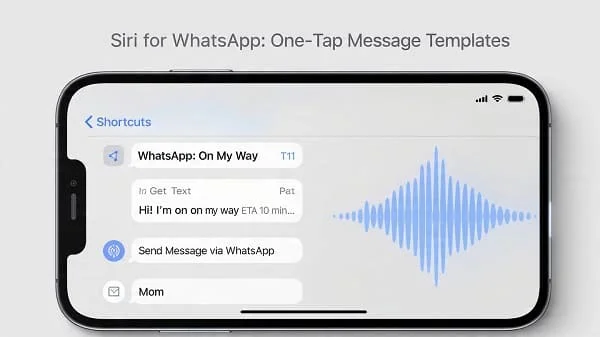
Sending the same WhatsApp messages again and again is slow. You can speed it up with Siri and Shortcuts—no extra apps—by creating one‑tap “message templates” that open WhatsApp with your text already filled in. This guide shows you how to build a reliable shortcut with a template picker, placeholders (like {name}, {order}, {time}), and fast triggers (Siri, Back Tap, Action Button, widgets). You’ll also learn phone‑number formatting that actually works, how to handle multiple languages (including Arabic/RTL), and what iOS will and won’t do for privacy and safety.
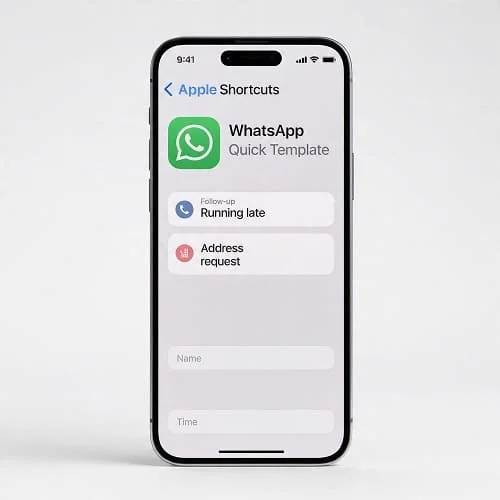
How it works: Siri + Shortcuts + WhatsApp click‑to‑chat
Shortcuts opens WhatsApp with a pre‑filled message using Click‑to‑Chat. iOS will not auto‑send; you confirm with one final tap.
| Method | Example | When to use | Notes |
|---|---|---|---|
wa.me | https://wa.me/15551234567?text=Hello%20there | Most reliable on iOS | Phone must be E.164 digits only (no “+” or spaces) |
| URL scheme | whatsapp://send?phone=15551234567&text=Hello%20there | Fallback | Some managed devices block custom schemes |
Your shortcut builds one of these links, URL‑encodes the message, and uses Open URLs to jump into WhatsApp with the text ready to send.
Requirements and what to prepare
- iPhone on current iOS (Shortcuts is built‑in).
- WhatsApp for iPhone (updated).
- Recipient numbers stored or ready in E.164 digits only: e.g.,
+44 7700 900123→447700900123. - A few message templates you use often (follow‑ups, running late, address requests, order confirmations).
Tip: Managed (MDM) devices may restrict URL schemes. If whatsapp:// fails, use wa.me.
Quick start: build a working version in 10 minutes
- Open Shortcuts → tap + → name it WhatsApp Quick Template.
- Add Choose from Menu with items like Follow‑up, Running late, Address request.
- For each item, set a variable TemplateText, e.g.:
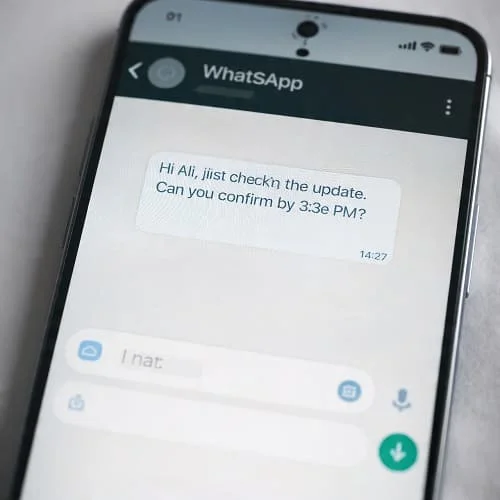
- Follow‑up: “Hi {name}, just checking on the update. Can you confirm by {time}?”
- Running late: “Hi {name}, I’m running ~10 min late. See you soon.”
- Address request: “Hi {name}, can you share the address for delivery?”
- Add Ask for Input → “Name?” → store as Name. If your template uses time, add a second prompt: “Time?”
- Add Replace Text actions to replace
{name}with Name and{time}with Time. - Add Ask for Input → “Phone (digits only)” → then Replace to strip
+, spaces, and dashes. - Add Encode Text (URL) to the message → call it MsgEncoded.
- Build
https://wa.me/+ PhoneClean +?text=+ MsgEncoded → Open URLs. - Shortcut info → Add to Siri → record “WhatsApp quick template”.
This baseline works immediately. Next, upgrade it with favorites, language variants, and faster triggers.
Core shortcut with placeholders and favorites
Make one shortcut that can handle many templates cleanly.
Template pattern
[Sales]     "Hi {name}, quick reminder about your order #{order}. ETA: {time}. Reply 1 to confirm."
[Support]   "Hi {name}, can you share a screenshot? Ticket ID: {ticket}."
[Logistics] "Hello {name}, outside your address now. Can you confirm gate code?"
[Personal]  "Hey {name}! On my way. ETA {time}."
Actions outline
- Choose from Menu → pick category → pick a specific template.
- Set TemplateText to the chosen template.
- For each placeholder (
{name},{time},{order},{ticket}):- If TemplateText contains the token → Ask for Input → Replace Text.
- Favorites dictionary (optional):
{ "Ali":"971501234567","Sara":"966512345678" }- Choose from List (Ali, Sara, Other)
- If Other → Ask for Input for phone → save to dictionary (optional)
- Sanitize the phone: remove
+, spaces, dashes; validate length if you like. - Encode Text (URL) → MsgEncoded → build
wa.melink → Open URLs.
Preflight checklist
- Test with one known contact in the right format (E.164 digits only).
- Confirm placeholders replace correctly (no braces left behind).
- Send a quick message to ensure emojis, accents, and line breaks look right after URL encoding.
One‑tap triggers (Siri, Back Tap, Action Button, widgets)
- Siri: Shortcut info → Add to Siri → record “WhatsApp follow‑up”.
- Back Tap: Settings → Accessibility → Touch → Back Tap → Double Tap → your shortcut.
- Action Button (iPhone Pro): Settings → Action Button → Shortcuts → your shortcut.
- Widget: Add the Shortcuts widget on your Home Screen for one‑tap access.
| Trigger | Hands‑free | Speed | Best for |
|---|---|---|---|
| Siri | Yes (unlock may be required) | Fast | Driving/voice workflows |
| Back Tap | No | Very fast | One‑hand use |
| Action Button | No | Fastest | Physical button fans |
| Widget | No | Fast | Visible on Home screen |
Localization and RTL tips (Arabic/English)
Use a language step before templates if you message in multiple languages.
- Language menu: set a Lang variable (e.g., English / العربية).
- Per‑language template sets: load the matching dictionary of templates based on Lang.
- Arabic/RTL: let WhatsApp handle direction; avoid mixing English punctuation inside Arabic phrases; test spacing and numerals.
- Names/transliteration: keep names as stored; only transliterate if people expect it.
For the rare BiDi glitch, add a space before/after English tokens or keep them on their own line.
Advanced patterns (menus, calendar/time, maps)
- Auto time: insert Current Date → Format (e.g.,
hh:mm a) to fill {time} automatically. - Calendar: get your next event’s title/time and reference it in the template.
- Share location: Get Current Location → append a maps link
https://maps.apple.com/?ll=lat,lon. - Tone switch: menu for Formal / Friendly versions of the same template.
- Hard‑wired presets: duplicate the shortcut for a single contact + single template = truly one tap.
Need email instead? Copy the final message to the clipboard and Open App (Mail/Gmail/Outlook) so you can paste into an email quickly—line breaks and emojis are preserved.
Privacy, safety, and iOS limitations
- No auto‑send: iOS intentionally requires your final tap to send in third‑party apps. This protects against accidental/spammy messages.
- Permissions: Contacts/Calendar/Location prompts appear once when used. Data stays in Shortcuts unless you sync via iCloud.
- Responsible use: don’t send unsolicited/bulk messages. Follow WhatsApp Terms and local anti‑spam laws. For business at scale, use official WhatsApp Business tools.
- GDPR/compliance: have a lawful basis to message someone; minimize stored personal data (e.g., Favorites); apply retention rules; share via secure channels when needed.
Troubleshooting and FAQs
WhatsApp didn’t open after running the shortcut
- Check the URL: phone must be E.164 digits only; remove
+, spaces, and dashes. - If
wa.mefails on your device, trywhatsapp://sendinstead. - Confirm Shortcuts can open URLs (Screen Time/MDM restrictions may block it).
Placeholders didn’t replace
- Token spelling must match exactly (e.g.,
{name}). No extra spaces or braces. - Use If TemplateText contains {token} before prompting; replace once per variable.
Pull first name automatically
- Use Select Contact → Get Details → First Name and replace
{name}with this value. If missing, fall back to manual input.
Send to a group
- Click‑to‑chat targets numbers, not groups. Copy your message to the clipboard, open WhatsApp, and paste into the group chat you choose.
Run while locked
- Siri can start the shortcut, but you typically need to unlock before WhatsApp opens. Behavior varies by iOS version and settings.
Special characters and line breaks
- Use Encode Text (URL) once on the message. It safely handles
&, accents, emojis, and newlines. - Do not double‑encode; apply encoding once to the message body only.
Schedule for later
- You can schedule the shortcut to open WhatsApp at a set time, but iOS still requires your tap to send. For automated send at scale, consider official business options.
Related reading
If you want to automate replies based on language detection, see: Auto‑Detect & Auto‑Reply in WhatsApp (Shortcuts).
Conclusion and takeaways
- Build one shortcut with a template menu, placeholders, and a tiny favorites list for fast selection.
- Always use E.164 digits‑only phone numbers and URL‑encode the message before opening WhatsApp.
- Add quick triggers—Siri, Back Tap, Action Button, widgets—for true one‑tap speed.
- For multilingual messaging, load the right template set per language and test Arabic/RTL rendering.
- Respect iOS limits (no auto‑send) and privacy rules. Keep your workflow simple and repeatable.
Once set up, repetitive WhatsApp replies become a one‑tap routine you can trust—without installing any extra apps.

Aarav Sharma — Founder & Editor, WA Translator. I publish hands‑on, privacy‑first guides on WhatsApp translation, iOS Shortcuts, and AI translators. All workflows are tested on real devices (EN↔AR) with screenshots and downloadable Shortcuts. About Aarav • Contact