
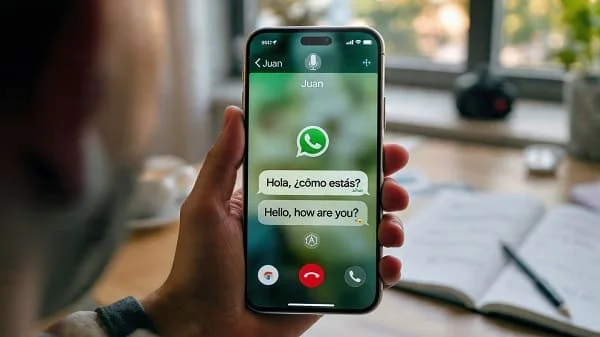
Trying to translate WhatsApp calls on iPhone and not finding a “live translate” button? You’re not missing anything—there isn’t one yet. iOS and WhatsApp don’t provide built‑in, real‑time call translation. The good news is you can still understand (and be understood) using a few reliable setups that respect Apple’s rules and privacy. This guide shows practical ways to translate WhatsApp calls on iPhone today: Live Captions (English transcription), a simple two‑device setup for live spoken translations, and a voice‑message workflow for high‑accuracy details. You’ll get step‑by‑step instructions, accuracy tips, and a clear view of what’s possible—no jailbreak or shady hacks.
What you can and can’t do on iPhone
- No native one‑tap “translate WhatsApp call” feature. WhatsApp for iOS doesn’t offer in‑call translation, and iOS doesn’t let other apps tap into WhatsApp’s call audio for real‑time processing.
- What you can do is combine iOS Live Captions (English transcription) or use a second device with a translation app (Apple Translate or Google Translate) placed near your iPhone’s speaker to get near real‑time spoken translations. For critical details, switch briefly to voice messages and translate with high accuracy.
- Result: practical, policy‑friendly setups that help you understand cross‑language WhatsApp calls—no jailbreak, no hacks.
Methods at a glance (comparison)
| Method | Live? | Languages | What you get | Best for | Needs |
|---|---|---|---|---|---|
| iOS Live Captions | Yes (transcription) | Primarily English (check availability) | On‑screen captions of what caller says | Following English calls | iPhone only |
| Two‑device conversation translation | Near‑live (spoken) | Many (Apple/Google) | Spoken translations you can hear | Two‑way calls across languages | Second phone/tablet |
| Voice message workflow | Near‑live (seconds/minutes) | Many | Accurate text for translation | Names, addresses, prices, medical info | iPhone only |
Method 1: Live Captions for real‑time English transcription
If the caller speaks English—or you just need English captions—Live Captions can transcribe WhatsApp calls in real time on your screen. It’s on‑device, fast, and private.
Requirements
- iPhone on iOS 16+ (availability varies by device/region; newer devices work best)
- WhatsApp calls on speaker (recommended for clearer pickup)
Turn on Live Captions
- Go to Settings → Accessibility → Live Captions (Beta).
- Enable Live Captions. Optionally enable In‑App Live Captions and customize appearance (size, color, background).
Use during a WhatsApp call
- Start a WhatsApp voice/video call.
- Put the call on speaker so your phone can “hear” clearly.
- Watch captions appear in real time. For non‑English languages, use Method 2 or copy short phrases into Translate.
Limitations: Live Captions is transcription (not translation) and works best with English. For other languages or spoken translation, use the two‑device approach below.
Method 2: Two‑device setup for live spoken translations
This is the most practical “live” translation workflow. Your second device runs a conversation‑mode translator and “listens” to the WhatsApp call through your iPhone’s speaker, then speaks the translation aloud.
What you need
- Your iPhone with WhatsApp
- A second device: iPhone/iPad (Apple Translate) or any phone/tablet (Google Translate Conversation mode)
- A quiet room (or earbuds on your iPhone to reduce feedback)
Setup in 60 seconds
- On the second device, open Apple Translate or Google Translate → start Conversation mode → choose languages (e.g., Arabic ↔ English).
- On your iPhone, start the WhatsApp call and put it on speaker.
- Place the devices 10–20 cm apart so the translator hears clearly (without echo).
- Let the translator app speak out what it hears in your language; speak your reply into the translator so it speaks the other language back to the caller.
Pro tuning
- Volume/distance: keep the call loud enough but not distorted; avoid feedback loops.
- Noise: move to a quiet room for best results.
- Headset option: wear AirPods on your iPhone so only the second device hears the caller (at low volume).
- Short sentences: ask the caller to pause between ideas; translation gets faster and clearer.
Method 3: Voice messages for accurate translation during/after a call
When precision matters (names, addresses, prices, medical details), switch briefly from the call to voice messages in the chat, then resume the call. This gives you clear text for translation.
How to do it
- On the call, agree to pause and exchange a quick voice message for the complex part.
- Send/receive the voice message in your chat. If WhatsApp shows a transcript, copy it and paste into Apple/Google Translate.
- If your app doesn’t transcribe, use a transcription tool (see Bonus) to get text, then translate.
- Return to the call and confirm details. You can mix this with Method 2 if needed.
Bonus: Translate audio and voice notes on iPhone
For non‑live parts of a conversation, transcribe → translate is very accurate.
Options to transcribe
- WhatsApp voice note transcription (where available): copy transcript → translate.
- Apple tools (iOS features evolve): attach audio to Notes/Voice Memos and use available transcription; then translate text.
- Trusted transcription apps: use a speech‑to‑text app to transcribe voice notes; paste text into Apple/Google Translate.
Simple workflow
- Save/forward the voice note to your transcription tool.
- Transcribe to text (choose correct source language/dialect).
- Translate text with Apple Translate or Google Translate.
- Share the translated text back in WhatsApp for clarity.
Optional: A Shortcut to speak translated replies
If you often need to respond in another language, put this on your second device for quick, spoken replies:
- Shortcuts → New Shortcut → Dictate Text (your language).
- Add Translate Text (target language).
- Add Speak Text (choose a clear voice and moderate speed).
- Name it “Speak Translate” and add to Home Screen.
During the call, tap the shortcut, dictate your reply, and let the device speak the translation near your iPhone’s mic.
Accuracy tips (checklist)
- Speak clearly and in short sentences; pause between ideas.
- Reduce background noise; close doors/windows; lower speaker volume to avoid feedback.
- Confirm names/numbers by spelling them; switch to voice messages for critical data.
- Pick the right dialects in translation apps (e.g., Spanish (Mexico) vs Spanish (Spain)).
- Keep apps and iOS updated; language support and models improve over time.
Privacy, consent, and call etiquette
- Tell the caller you’re using translation tools; many regions require consent for call processing.
- Don’t record calls without explicit consent; check local laws.
- Prefer on‑device tools (Live Captions, native transcription) when possible for privacy.
- Agree on a rhythm: live translation adds a delay; take turns.
Troubleshooting
Live Captions option missing
Update iOS; check region/device support (Settings → Accessibility). If unsupported, skip to Method 2.
Conversation app isn’t picking up audio
Increase iPhone speaker volume slightly; move devices closer; remove case; avoid echo. Grant Microphone permission to the translator app.
Echo/feedback loop
Lower volume; move devices farther apart; wear earbuds on the iPhone; hold the second device at a slight angle.
Wrong language detected
Set languages/dialects manually in Conversation mode; ask the caller to speak slowly.
Voice message has no transcript
Use a transcription tool; then translate the text.
FAQs
Can I translate WhatsApp calls on iPhone with one tap?
No. There’s no built‑in live call translation. Use Live Captions (English) or the two‑device setup for spoken translations.
Will Live Captions translate for me?
No. Live Captions transcribes speech (primarily in English). For other languages, use the two‑device method or translate text afterward.
Is there an app that listens to WhatsApp call audio and translates it?
iOS sandboxing prevents apps from tapping WhatsApp call audio directly. That’s why the speakerphone + second device approach is the practical alternative.
How do I translate WhatsApp voice messages?
If your app shows a transcript, copy and translate it. Otherwise, transcribe with a speech‑to‑text tool first, then translate the text.
Does this also work for video calls?
Yes. Use Live Captions (for transcription) or the two‑device method with speaker audio. The principles are the same.
Is this allowed by WhatsApp?
Yes. You aren’t modifying WhatsApp or intercepting encrypted audio; you’re using accessibility and translation tools alongside speaker audio. Always obtain consent.
Resources and related reading
- Apple Support — Use Live Captions on iPhone
- Google Translate — Conversation mode
- WhatsApp Help Center — About voice calling
Related on our site: Siri Commands for WhatsApp: One‑Tap Message Templates (reply faster during/after calls).
Conclusion
There’s no magic “translate WhatsApp calls on iPhone” button, but you still have workable options. For English calls, Live Captions gives you fast, private transcription. For different languages, the two‑device approach provides near‑live spoken translations. When accuracy is critical, use voice messages plus transcription/translation. Combine these methods, follow the accuracy checklist, and you’ll have a dependable workflow for cross‑language WhatsApp calls—no jailbreak or risky apps required.

Aarav Sharma — Founder & Editor, WA Translator. I publish hands‑on, privacy‑first guides on WhatsApp translation, iOS Shortcuts, and AI translators. All workflows are tested on real devices (EN↔AR) with screenshots and downloadable Shortcuts. About Aarav • Contact