
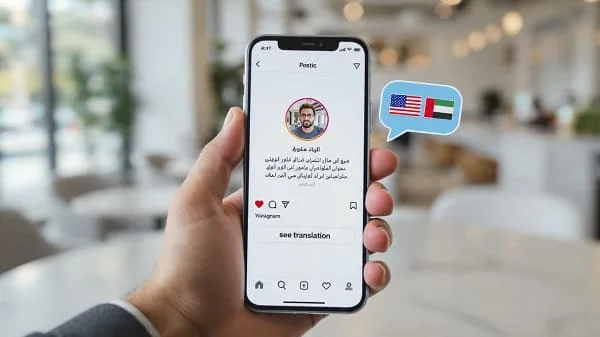
Make the entire world legible. This comprehensive, AdSense-friendly guide shows you exactly how to translate Instagram captions automatically—natively in the app, with iOS/Android tools, and via desktop extensions—without copy-paste chaos. Learn pro workflows, privacy tips, and troubleshooting tactics so you never miss context, nuance, or time-sensitive updates again.
An Introduction from the Desk of an Elite Content Strategist
My first assignment as a freelance journalist had me tracking a complex political story across five countries—from my home office. The kicker? Nearly all the primary-source evidence, insider commentary, and even leaks were broadcasting in the open on Instagram. The problem: half of it was in Mandarin, a chunk in Russian, the rest in Portuguese. I spent an awful hour copying and pasting captions into Google Translate, watching the flow break and the context bleed out while my deadline evaporated. I remember thinking, There has to be a better way to translate Instagram captions automatically.
If you’ve ever hit that wall—staring at a brilliant Parisian chef’s caption, a Nepalese guide’s route update, or a breaking-news post in a language you don’t read—you know the feeling. Instagram may be the world’s most visual platform, but it’s also one of the most textually diverse. It’s a global village where a caption written in Tokyo can inform decisions in Toronto—if you have the right key.
This guide is that key. We’re not doing clunky copy-paste. We’re harnessing native features, OS-level magic, and browser tools to make translation invisible, instant, and reliable. You’ll learn how to translate Instagram captions automatically—seamlessly—without losing pace, context, or nuance. Ready to make the whole world readable?
Why Missing the Context is Missing the Story
Instagram has evolved into a real-time registry of culture, commerce, and current events. Trends, product launches, safety updates, academic insights—so much of it now originates outside the Anglosphere. If translation breaks your browsing flow, you’re far more likely to miss or abandon content that doesn’t speak your language.
- The Global Traveler’s Dilemma: A local operator in Vietnam posts a last-minute schedule change in Vietnamese. If you can’t instantly translate, your plan falls apart. Manual copy-paste wastes time; long captions make it worse.
- Competitive Intelligence Crisis: A competitor in Brazil shares launch details across posts in Portuguese. You need to synthesize now. Waiting for manual translation costs you momentum—and possibly market position.
- Student/Researcher Trap: Primary insights on Italian design or Japanese sustainable farming live in nuanced, regional language. Literal, clunky machine output can miss tone, intent, and cultural context.
Bottom line: translation must preserve both continuity and context. The tools you’ll learn below do exactly that.
The Native Solution: How Instagram Handles Instant Translation
Instagram’s built-in translation is the fastest, most integrated way to translate Instagram captions automatically. It’s designed for continuity: tap, read, move on. No app switching, no copy-paste, no friction.
Where the “See Translation” Trigger Appears
- Posts: Under the caption, you’ll often see “See translation” (or “View translation”) when Instagram detects a language different from your app language.
- Comments: Many comments support a similar inline translate link. Great for community threads and Q&A.
- Stories: If text is added with Instagram’s native Story text tool, a subtle “See translation” may appear. For text baked into images/screenshots, use the OCR methods in the next section.
- Reels: Captions behave like post captions—look for the same auto-translate link beneath the text.
How to Use It (Step-by-Step)
- Open a post with a caption in another language.
- Look under the caption for “See translation.”
- Tap once. The translated text appears instantly in your app language.
In most regions and app versions, the feature is fast and accurate for everyday captions, including colloquial language and emojis. Because it’s native, it tends to feel “invisible”—exactly what you want for continuous feed consumption.
Dial It In: Language and App Settings That Control Auto-Translate
Instagram’s auto-translation depends on your app language and device language preferences. Setting these correctly ensures you always see translations in your preferred destination language.
Set Your App Language (iOS/Android)
- Open your Profile (bottom-right icon).
- Tap the Menu (☰) → Settings & Privacy.
- Go to Language → choose your preferred App Language.
Instagram uses this app language as the translation target for “See translation.” If you’re a German speaker living in the U.S. with your phone in English, switch Instagram’s app language to German to consistently receive German translations.
Optional: OS Language and Region
On iOS and Android, your system language and region settings can influence language detection or font rendering. If auto-detect seems finicky, confirm your OS language is set as expected.
Why This Matters
Optimizing these settings removes guesswork. You’ll get automatic, consistent target-language captions without fiddling per post—exactly what “translate Instagram captions automatically” should feel like.
Beyond the Button: iOS Live Text & Android Google Lens (OCR)
Sometimes captions are embedded in images (screenshots, stylized posts, text-in-Reels frames). Native “See translation” won’t catch those. That’s where your OS-level OCR shines—still without copy-paste.
iOS: Live Text + Translate
- Screenshot the post or Story with embedded text.
- Open the screenshot in Photos and tap/hold on the text. iOS detects selectable text.
- Choose Translate from the context menu. View the inline translation instantly.
Apple’s neural engine handles this largely on-device, which is both fast and privacy-friendly.
Android: Google Lens
- Screenshot the post/Story.
- Open in Google Photos (or the Lens app), tap the Lens icon.
- Select Text → tap Translate. Lens can overlay the translation “in place” so you read it as part of the image.
Why OCR Complements Native Translate
- Captures text that’s part of an image (flyers, menus, infographics, text-heavy Stories).
- No need to leave your photo viewer—still feels “automatic.”
- Great fallback when the “See translation” link doesn’t appear.
Desktop Power: Browser Translation & Extensions
If you analyze Instagram on desktop (social teams, researchers, journalists), browser-level translation keeps your flow intact for long captions and comment threads.
Built-In Page Translation (Chrome/Edge)
- Open instagram.com in Chrome or Edge.
- When a foreign-language caption appears, the address bar typically shows a translate icon. Click it, or right-click the page → Translate to [Your Language].
- Set site rules like “Always translate Portuguese on Instagram” for hands-free reading.
DeepL or Google Translate Extensions
- DeepL for Browser: Excellent for nuanced language; translate selected text or panes while keeping layout.
- Google Translate Extension: Quick, page-wide translation with per-site rules.
These tools treat Instagram like any other webpage—perfect for reading long captions and comment chains without breaking your rhythm.
Which Engine and When? Meta vs. Google vs. DeepL
No single engine wins every scenario. Match the tool to the text for the best auto-translate results.
| Feature | Instagram Native (Meta) | Google Translate / Lens | DeepL (Browser/Mobile) |
|---|---|---|---|
| Strengths | Seamless in-app; tuned for social tone & slang | Broad language coverage; great for OCR via Lens | Most natural for many European pairs; nuanced phrasing |
| Best Use | Everyday captions/comments; fast feed reading | Text-in-image, scans, bulk page translation | Business, academic, long/precise captions |
| Setup | None; built into Instagram | Low; extensions or Lens on mobile | Low–Medium; extension/app |
| Limitations | Won’t pick up text baked into images; quality varies by language | Literal tone at times; layout can shift on complex pages | Free tier file/length limits; language availability varies |
Rule of thumb: Start with the native Meta engine for casual posts. If the caption is long, technical, or sensitive, compare with DeepL. For text inside images, use Google Lens (Android) or Live Text (iOS).
Pro Workflows for Strategists, Journalists, and Social Teams
If you translate Instagram captions automatically multiple times a day, streamline your process like a newsroom.
1) The Multilingual Monitoring Stack
- Mobile (fast scan): Native “See translation” → if missing, OCR via Live Text/Lens.
- Desktop (deep read): Chrome/Edge page translate or DeepL extension for long captions and comment threads.
- Verification: Cross-check high-stakes content in DeepL and Google; escalate to human review if outputs diverge.
2) Foldering and Tagging
Use tools (e.g., Later, Notion, Airtable) to tag saved posts by language, market, and status (Untranslated / Auto / Human-verified). This improves recall and team collaboration.
3) Snippet & Glossary Discipline
- Create a light glossary for recurring product terms, slang, and proper nouns by market.
- Standardize names and brand spellings in your notes to avoid inconsistent downstream reporting.
4) Efficiency on Mobile
- Android: Enable Tap to Translate and keep Google Lens within reach.
- iOS: Use Live Text + Translate; add a Shortcut to quickly send selected text to Translate.
For Creators: Make Your Captions Translation-Friendly
Help auto-translation engines help you. A few tweaks can make your content more accessible worldwide.
- Short, clear sentences: MT handles concise structures best; split long lines into two.
- Limit stacked idioms: One idiom per sentence is plenty; back-to-back slang increases errors.
- Define brand terms once: A “[Brand] = [What it is]” note in your bio or Link in Bio helps readers and tools.
- Alt text and subtitles: Add clear alt text and, for video, consider captions in the original language—both improve downstream translation clarity.
- Use line breaks and bullets: Structured captions survive translation better than massive walls of text.
- Consider bilingual posts for key updates: One line in the source language + one in English broadens reach instantly.
Troubleshooting: Fix Common Auto-Translation Roadblocks
“See Translation” Is Missing
- Same language: If Instagram thinks the caption matches your app language, it won’t show the link. Try switching App Language (Settings & Privacy → Language) to your preferred target language, then switch back after browsing.
- Text is too short: Single-word or emoji-only posts may not trigger translation. Use OCR (screenshot → Live Text/Lens) when needed.
- Text is in the image: “See translation” can’t detect text embedded in images. Screenshot and use Live Text/Lens.
- Old posts: Very old posts can behave inconsistently. Use the OCR fallback.
Translation Feels “Off” or Literal
- Regional variants: Specify source language variants (e.g., Spanish – Mexico) in third-party tools to improve context.
- Compare engines: If native and Google differ significantly, run a DeepL check for nuance—especially with business or legal terms.
Fonts & Special Characters Mistranslated
- Stylized fonts: Fancy fonts can confuse detection. Copy the caption text (if selectable) into a note and translate, or use OCR on a screenshot.
- RTL scripts: For Arabic/Hebrew in comments, page translation on desktop can stabilize directionality.
Stories Requiring Translation
- Native text tool: If “See translation” doesn’t appear, screenshot and run OCR.
- Timing: Stories disappear—grab screenshots if you’ll need to reference or translate later.
Large Threads or Long Captions
- On desktop, prefer Chrome/Edge page translate or DeepL extension for smooth scrolling and consistent layout.
- Use a document to collect key lines and cross-check in a second engine before quoting.
Privacy, Safety, and Terms: Smart Translation in 2025
- Stay passive: Translating content is passive reading. Avoid extensions that automate posting, liking, or messaging.
- On-device wins: iOS Live Text and many Android OCR flows are on-device, which is more private. Favor them for sensitive research.
- Use reputable sources: Install extensions only from official stores. Review permissions carefully.
- Don’t upload sensitive data: If you must translate private or proprietary content elsewhere, prefer enterprise-grade tools with strong privacy policies.
Real-World Scenarios (Travel, Research, Competitive Intel)
- Traveler in Japan: A guide’s last-minute weather update appears as an image in Stories. Screenshot → Live Text/Lens → Translate “in place” and adjust your plan in seconds.
- Market researcher in Brazil: Use desktop page translation to read long launch announcements and comments at speed. Verify critical lines in DeepL before reporting.
- Graduate student in Italy: Capture insights from local creators’ captions; save key terms into a bilingual glossary for thesis consistency.
- Brand strategist in Germany: Compare native, Google, and DeepL outputs for ads and influencer briefs; escalate to a human translator when nuance is business-critical.
FAQs: Quick Answers to Common Questions
Q1: Can I set a permanent translation language for all posts?
Yes. Set your Instagram App Language (Settings & Privacy → Language) to the language you want as your translation target. The native “See translation” follows that setting.
Q2: Does “See translation” work on Stories and Reels?
Often, yes—especially for text added with Instagram’s native tools. For text baked into images or video frames, use OCR (iOS Live Text / Google Lens) via screenshot.
Q3: Is there a caption-length limit for auto-translation?
Instagram can handle long captions, but for multi-paragraph or technical text, verify in DeepL for better fluency and context. On desktop, page translation keeps the layout coherent.
Q4: Will a browser extension put my account at risk?
Passive translation is fine. Avoid extensions that automate behaviors (liking, following, messaging). Install only from official stores and trusted developers.
Q5: What if the translation is obviously wrong?
Specify the source language/region in your translator (e.g., Spanish—Mexico). Compare native output with DeepL/Google. If it still diverges, consult a human translator for accuracy.
Bottom Line: Your Always-On Caption Translator Stack
- Start native: Instagram’s built-in “See translation” for fast, seamless reading.
- OCR for images: iOS Live Text / Google Lens for text inside images and Stories.
- Desktop speed: Chrome/Edge page translate or DeepL extension for long captions/comments.
- Verify high stakes: DeepL for nuance; cross-check with Google for coverage.
- Stay compliant: Keep translation passive; avoid automated actions.
With this toolkit, you can translate Instagram captions automatically—without breaking flow, losing context, or risking errors. The result: better decisions, richer discovery, and true global connection.

Aarav Sharma — Founder & Editor, WA Translator. I publish hands‑on, privacy‑first guides on WhatsApp translation, iOS Shortcuts, and AI translators. All workflows are tested on real devices (EN↔AR) with screenshots and downloadable Shortcuts. About Aarav • Contact