
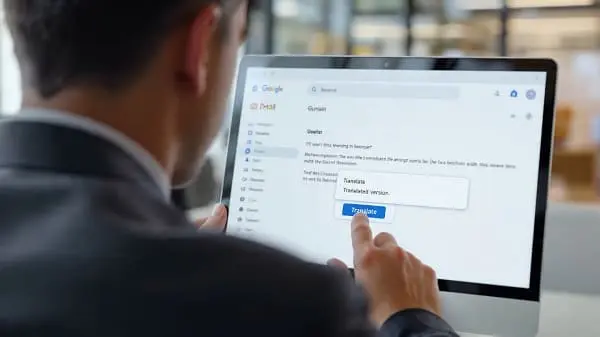
If you’ve ever opened an important email and realized it’s in a language you don’t speak, you know the awkward mix of urgency and confusion. For years, the fix was a clumsy copy-paste dance into a separate translator. In 2025, you don’t need that anymore. Modern email apps, browsers, and mobile tools can translate messages instantly—right where you read and reply.
This guide shows you how to translate emails without copy-paste using free, reliable tools on Gmail, Outlook, Yahoo, and more. You’ll get step-by-step instructions, pro tips, privacy guidance, and a comparison table to help you choose the best solution for you.
- Target keyword focus: translate emails without copy-paste
- Works for: students, travelers, freelancers, founders, remote teams
- Platforms covered: Web, desktop, Android, iOS, and browser extensions
Table of Contents
Lost in Translation in Your Inbox
A few months back, I opened Gmail and saw a promising note from a client in Spain—written entirely in Spanish. My first instinct? Copy the text, paste it into a translator, paste the results into a draft reply, then repeat the loop until the thread was “good enough.” It was slow, clunky, and honestly, easy to mess up.
Sound familiar? Maybe it’s a French admissions email, a German invoice, or a Japanese hotel update. Email is still the backbone of our work and personal lives. But when your messages arrive in a language you don’t understand, it’s easy to miss deadlines or misinterpret details.
Here’s the good news: in 2025, you can translate emails without copy-paste—instantly—using built-in email features, browser tools, and mobile apps. Below, you’ll find the best options and exactly how to use them.
Why Translating Emails Matters
Email isn’t just another notification—it’s where you receive job offers, billing notices, travel itineraries, contracts, academic updates, and client instructions. Misunderstandings can be costly.
- Students: Admissions, scholarships, housing, and research communications can arrive in multiple languages.
- Travelers: Booking confirmations, flight schedule changes, local regulations, and hotel updates often use local languages.
- Professionals: Contracts, legal notices, and client communications frequently cross borders and languages.
- Everyday users: Personal notes from friends or family abroad shouldn’t be lost in translation.
With over 330 billion emails sent every day worldwide (Statista, 2024), easy, accurate translation is no longer “nice to have”—it’s essential.
What “Translate Emails Without Copy-Paste” Really Means
When we say “translate emails without copy-paste,” we’re talking about translating the email content where it already lives—inside your inbox:
- Inline translation: The message text is translated right in your email view without switching tabs.
- One-click experience: You click “Translate” (or your browser’s translate prompt) and read the message instantly in your language.
- Reply-friendly: For replies, translate your draft or compose in your language and translate it before sending—ideally, without jumping between tools.
The tools below deliver exactly that experience on Gmail, Outlook, Yahoo, and other webmail or mobile apps.
The Fastest Free Ways to Translate Emails Without Copy-Paste (2025)
- Gmail’s built-in translation
- Outlook’s translator (desktop, web, and mobile)
- Browser translation (Chrome, Edge) and add-ons (DeepL, Mate, Mozilla’s Firefox Translations)
- Mobile “Tap to Translate” and share-to-translate workflows
- All-in-one email clients with translation support (e.g., Zoho Mail; others vary by version)
Each option is free (some offer paid upgrades), quick to use, and keeps your email’s formatting intact.
Step-by-Step: Translate Emails Without Copy-Paste
1) Gmail: Built-in Translation (Web + Mobile)
Gmail’s translation feature is fast, accurate for most languages, and keeps your email formatting clean.
How to translate in Gmail (Web):
- Open the email.
- If Gmail detects a different language, a translation banner appears at the top.
- Click Translate message and choose your language if needed.
- Optional: Use the menu to Always translate [language] or Never translate [language].
If you don’t see the banner:
- Click the three dots (More) in the top-right of the message.
- Select Translate message and set your preferred language.
Gmail (Mobile: Android & iOS):
- Open the email in the Gmail app.
- If a translation prompt appears, tap Translate.
- If not, tap the three dots (top-right) and look for Translate or language options.
Tips for Gmail:
- Always/never translate: Fine-tune languages so Gmail auto-translates Spanish, for example, without prompts.
- Compose translations: Gmail doesn’t natively translate your reply as you type. Use browser extensions (e.g., DeepL for Browser, Mate Translate) to translate your draft inline.
- Keep signatures and names unaltered: Don’t translate proper names, IDs, or invoice numbers.
Limitations:
- Some specialized content (legal, medical, technical jargon) may read too literally. For critical messages, double-check with a professional or a premium tool like DeepL Pro.
Helpful resource: Google Support – Translate Gmail messages
2) Outlook: Built-in Translator (Windows, Mac, Web, Mobile)
Outlook’s translation is reliable and integrated into most client versions.
Outlook on the Web (Outlook.com):
- Open an email.
- Click More actions (three dots) in the message toolbar.
- Choose Translate and select your language.
Outlook for Windows (New Outlook/Outlook desktop variants):
- Open the email.
- Look for Translate in the ribbon or the More actions (…) menu.
- Apply translation; Outlook shows the translated view inline.
Outlook for Mac:
- Similar steps: open the email → More actions (…) → Translate.
- If Translate isn’t visible, keep Outlook updated or use the Translator for Outlook add-in.
Outlook Mobile:
- Tap the message → More (…) → Translate (availability varies by region/app version).
Tips for Outlook:
- Per-language preferences: Save defaults so Outlook auto-translates frequently used languages.
- Reply translation: Use add-ins (Translator for Outlook) or a browser extension on Outlook Web to translate your draft before sending.
Microsoft support: Translator for Outlook
3) Yahoo & Other Webmail: Browser Translation + Extensions
If your webmail doesn’t include translation, your browser can do the heavy lifting—no copy-paste required.
Chrome (built-in):
- Open the email in your webmail.
- Chrome may prompt “Translate this page.” Click Translate, or click the Translate icon in the address bar.
- Right-click anywhere and choose Translate to [Your Language] if you don’t see the prompt.
Edge (built-in):
- Open the email.
- If prompted, click Translate. Or right-click the page → Translate to [Your Language].
Firefox:
- Install Mozilla’s Firefox Translations (local, on-device translation for privacy-conscious users).
- Alternatively, extensions like To Google Translate or TWP (Translate Web Pages) work well.
High-quality extensions:
- DeepL for Browser (Chrome/Edge/Firefox): Accurate translations and inline compose support in many web apps.
- Mate Translate: Handy hotkeys and phrasebook features; works inside inbox views.
When to use browser translation:
- Your email provider doesn’t have built-in translation.
- You want to translate email content, replies, or even attachments that open in the browser.
- You prefer more control over language selection and per-site behavior.
Useful links:
- Chrome Help – Translate web pages: https://support.google.com/chrome/answer/173424
- Microsoft Edge – Translate: https://support.microsoft.com/en-us/microsoft-edge
- Firefox Translations (Mozilla): https://addons.mozilla.org/firefox/addon/firefox-translations/
- DeepL for Chrome: https://www.deepl.com/en/chrome-extension
4) Mobile: Translate On the Go (Android & iOS)
Traveling, commuting, or studying abroad? Translate emails seamlessly on your phone.
Android: Google Translate “Tap to Translate”
- Install/update Google Translate.
- Open Google Translate → Settings → Enable Tap to Translate.
- In Gmail or Outlook app, long-press to select text; tap Copy.
- A floating Google Translate bubble appears; tap it to see instant translation.
- You can also share the email text to the Translate app.
iOS: Share-to-Translate
- Use the iOS share sheet: Select email text → Share → Google Translate (or another translation app).
- Some apps (e.g., DeepL) support Share or Shortcuts-based translation for quick access.
Pro tips for mobile:
- Offline packs (Google Translate): Download specific languages for limited offline translation.
- Privacy: Check app permissions and disable clipboard monitoring if you prefer.
5) All-in-One Email Clients with Translation
Some third-party email clients integrate translation—or offer it via AI-powered assistants.
- Zoho Mail: Built-in message translation for many languages; integrates with other Zoho apps.
- Spark Mail: Offers smart features and has periodically added translation capabilities; check the latest version notes.
- Proton Mail: Privacy-first; translation features vary by platform and version; check current release notes.
Why consider these:
- Consolidated inbox + translation in one app.
- Productivity features (snooze, reminders, follow-up nudges).
- Privacy settings and compliance options.
Note: Availability and quality of translation features vary by region and version. Always check the client’s current help docs.
Comparison: Best Free Ways to Translate Emails (2025)
| Tool / Method | Platforms | Best For | Auto-Translate Options | Offline Mode | Cost | Notes |
|---|---|---|---|---|---|---|
| Gmail built-in translation | Web, Android, iOS | Most Gmail users | Yes (per language) | No (online feature) | Free | Preserves formatting; quick |
| Outlook + Translator | Web, Windows, Mac, iOS, Android | Work/enterprise users | Yes (vary by client) | No (online feature) | Free | Works across Microsoft ecosystem |
| Chrome/Edge page translate | Web (any webmail) | Yahoo, custom domains, old UIs | Yes (site/language) | No | Free | Great fallback for any inbox |
| DeepL for Browser | Chrome, Edge, Firefox | Highest text quality | Yes (per site) | No | Free/Pro | Excellent for specialized content |
| Mate Translate | Chrome, Edge, Safari | Power users, hotkeys, phrasebook | Yes (rules) | Limited | Free/Pro | Great workflow tools |
| Firefox Translations (local) | Firefox (desktop) | Privacy-focused users | Limited | Yes (on-device) | Free | On-page, on-device translation |
| Mobile “Tap to Translate” | Android, iOS (share) | Travelers, on-the-go users | N/A | Partial (packs) | Free | Handy when away from desktop |
| Zoho Mail | Web, Mobile | Integrated productivity | Yes | No | Free/Pro | Built-in translate in client |
Note: Feature availability may change; always check the latest app/browser release notes.
How to Choose the Right Translator (Decision Guide)
Pick based on where you read email most and your privacy/accuracy needs:
- Mostly on Gmail (Web/Mobile): Use Gmail’s built-in translation. Add DeepL for Browser if you want higher-quality phrasing for client emails.
- Outlook at work: Use Outlook’s built-in Translate. On Outlook Web, pair with DeepL or browser translate for composing replies.
- Yahoo or custom webmail: Enable Chrome/Edge translation or install DeepL/Mate extensions.
- Travel-focused: Set up Tap to Translate (Android) and Share-to-Translate (iOS) for quick comprehension on the go.
- Privacy-first: Use Firefox Translations (on-device) where possible; consider enterprise or Pro-grade translation tools for sensitive messages.
Translate Replies Without Copy-Paste (Compose Like a Pro)
Reading translations is step one. The real productivity win is translating your replies—cleanly and professionally—without juggling tabs.
Options:
- Browser extensions (DeepL/Mate): Highlight your draft → right-click → translate to the recipient’s language. Many extensions let you set hotkeys for instant in-place translation.
- Outlook add-ins: Translator for Outlook can help with reply translation in supported flows.
- Mobile share flows: On your phone, draft in your language → share to the translate app → paste the result back. Not fully “no paste,” but efficient on the move.
Best practices for reply translation:
- Include the original and translated versions for clarity in critical messages.
- Keep sentences short and avoid idioms or wordplay.
- Preserve proper nouns and numbers; don’t translate names, tracking IDs, or invoice references.
- Add a polite note: “Translated for clarity—please let me know if anything needs adjustment.”
Power Tips and Automation (Save Even More Time)
- Gmail “Always translate”: Once you choose this, Gmail will auto-translate future messages in that language, no prompt needed.
- Browser rules: Chrome/Edge let you set “Always translate [language]” or “Never translate this site/language.” Tailor rules to your inbox.
- Filters and labels (Gmail): Create filters for common foreign-language senders or subjects; label them (e.g., “Needs translation”) to prioritize.
- Keyboard shortcuts: Extensions like Mate Translate allow hotkeys to translate selected text/drafts without touching the mouse.
- Snippets/Templates: Keep bilingual templates (“Thank you for your email…” in multiple languages) to speed up common replies.
- Mobile shortcuts: On iOS, set a Shortcuts routine to send selected text to your preferred translation app; on Android, keep Tap to Translate enabled for frequent use.
Safety, Privacy, and Compliance
Free tools are convenient, but be mindful of data sensitivity.
- Avoid free translation for highly confidential data (legal contracts, medical records, proprietary files). Use enterprise translators with strict data policies, such as DeepL Pro or Microsoft’s enterprise-grade services.
- Check retention policies: Some free tools may temporarily cache text to improve services. Review privacy settings and disable history/logging where possible.
- On-device translation (Firefox Translations): For privacy-focused users, local, on-device translation reduces exposure to cloud services.
- Compliance: If you operate under GDPR/CCPA/HIPAA/PCI requirements, consult your compliance officer before translating sensitive content through third-party services.
Troubleshooting: When Translation Doesn’t Appear or Looks Off
- No translate banner (Gmail): Use the message menu → Translate message. If still missing, switch to desktop view or try a different browser.
- Browser won’t translate: Some webmail clients use dynamic frames that confuse translation. Right-click inside the message pane, not the page background. Alternatively, open the message in a new window/tab.
- Mixed-language emails: If your email has multiple languages, auto-detection may pick the wrong one. Manually set the target language and try again.
- Formatting glitches: Rarely, heavily styled newsletters can render oddly after translation. Temporarily switch to plain-text view or use the browser’s reader mode (where available).
- Attachments: Translators won’t translate images or PDFs embedded in the email. Use OCR tools (Google Drive, Adobe Acrobat, or your translation app’s photo/scan feature) to extract text and translate.
- Terminology errors: For technical emails, consider DeepL or a professional translator to preserve nuance. Create a mini glossary for recurring terms.
Real-Life Use Cases
- Student in France: “My admissions letter arrived in French. Gmail auto-translate made it readable in seconds, and I used a browser add-on to translate my response. No copy-paste needed.”
- Freelancer in India: “Outlook’s Translate helped me negotiate with a German client while keeping everything professional and formatted correctly.”
- Traveler in Japan: “Gmail on my phone + Tap to Translate handled hotel updates, restaurant bookings, and transit alerts right inside my inbox.”
Accessibility and Inclusion Benefits
Built-in translation doesn’t just save time—it expands access:
- Cross-border learning: Students can access exchange program updates and research notes more easily.
- Multilingual teamwork: Teams can collaborate across offices without waiting on human translation for routine updates.
- Customer support: Support queues can triage messages faster with instant context from translated emails.
Related Reading
If you work with content beyond email—like videos—this guide pairs nicely with your workflow:
- How to Translate YouTube Video Captions Instantly in 2025: https://watranslator.com/how-to-translate-youtube-video-captions-instantly-in-2025/
Recap: The Smart Way to Translate Emails Without Copy-Paste
- Use built-in tools first: Gmail and Outlook provide fast, inline translation with minimal setup.
- Add browser extensions if needed: DeepL for Browser and Mate Translate boost quality and control for webmail users.
- Keep mobile-ready tools: Tap to Translate (Android) and share-to-translate flows (iOS) make travel and on-the-go work smoother.
- Respect privacy and compliance: For sensitive data, use enterprise-grade translation or on-device solutions.
With the right setup, you’ll read and reply across languages like a pro—no more copy-paste juggling.
FAQs
Are these translation tools really free?
Yes. Gmail, Outlook’s translator, and browser translation are free. Some tools (e.g., DeepL) offer optional Pro plans for enhanced privacy and quality.
Do these translations work offline?
Browser and in-app translators typically need an internet connection. Google Translate offers offline language packs on mobile for basic use.
Will my email’s formatting change?
Gmail and Outlook preserve formatting well. Browser translation usually keeps structure intact; visually complex newsletters may need reader mode.
Is it safe for confidential emails?
For casual messages, built-in tools are fine. For sensitive content, use enterprise-grade solutions (e.g., DeepL Pro) or on-device translation tools.
Can I translate my replies without switching tabs?
Yes. Use browser extensions like DeepL for Browser or Mate Translate to translate your draft inline.
References
- Google Support – Translate Gmail Messages: https://support.google.com/mail/answer/13846620?hl=en&co=GENIE.Platform%3DAndroid
- Microsoft – Translator for Outlook: https://support.microsoft.com/office/translate-text-into-a-different-language-287380e4-a56c-48a1-9977-f2dca89ce93f
- Chrome Help – Translate web pages: https://support.google.com/chrome/answer/173424
- Microsoft Edge – Translate: https://support.microsoft.com/en-us/microsoft-edge
- DeepL Official: https://www.deepl.com
- Firefox Translations (Mozilla): https://addons.mozilla.org/firefox/addon/firefox-translations/
- Statista – Daily Emails Sent: https://www.statista.com/statistics/456500/daily-number-of-e-mails-worldwide/

Aarav Sharma — Founder & Editor, WA Translator. I publish hands‑on, privacy‑first guides on WhatsApp translation, iOS Shortcuts, and AI translators. All workflows are tested on real devices (EN↔AR) with screenshots and downloadable Shortcuts. About Aarav • Contact