
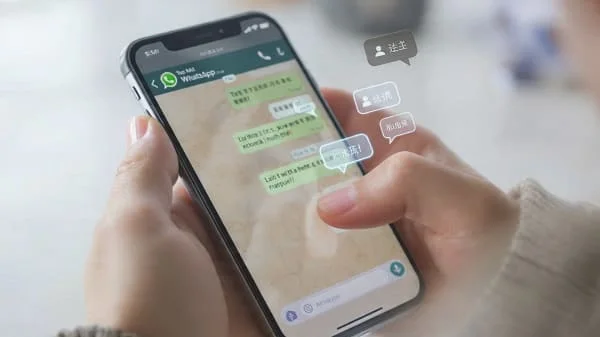
Stop juggling apps and losing context. This complete, AdSense-friendly guide shows you how to translate entire WhatsApp chats without copy-paste—on iPhone, Android, and desktop—with step-by-step workflows, trusted tools, privacy tips, and pro setups for students, travelers, and businesses.
Table of Contents
When Chats Become a Language Maze
Last year, I joined a WhatsApp group full of travelers in South America. Every day, the chat exploded with rapid-fire messages in Spanish and Portuguese—trip plans, safety updates, last-minute bus schedules, and restaurant recommendations. It was everything a traveler needs—except I don’t speak either language fluently.
At first, I did what most people do: copy, paste, translate. It worked… for five or ten messages. After fifty, I was falling behind and losing context. The vibe of the chat—the jokes, the tone, the urgency—was gone.
Then I discovered something better: reliable ways to translate entire WhatsApp chats without copy-paste. Once you try them, you won’t go back.
Why Translating WhatsApp Chats Matters
You might ask: Is this really worth the trouble? Short answer: yes—and here’s why.
- Global Conversations Are Normal Now
With over 2.7 billion users worldwide (Statista, 2025), WhatsApp is where study groups, volunteer coordination, customer support, travels, and even crisis response happen—often in multiple languages. - Copy-Paste Isn’t Practical
In busy groups or fast-moving projects, manual translation creates lag, errors, and burnout. - Context Is Everything
Chats are conversations. Sarcasm, humor, tone, and thread references make more sense when you translate in-flow, not line-by-line. - Opportunity Beyond Socializing
Freelancers, small shops, community leaders, and travelers miss deals and decisions when they can’t keep up. Translation removes that barrier.
If you want to stay connected in today’s global world, you need better solutions than copy-paste. Let’s set you up.
Quick Start: The Fastest Ways (No Copy-Paste)
- Android, daily use: Enable Google Translate’s Tap to Translate and/or Gboard Translate to read and reply in your language without leaving WhatsApp.
- iPhone, quick catch-up: Use Live Text + Translate on screenshots for batch reading. For one-off messages, select text → Translate.
- Long threads/archives: Export the chat to
.txtand translate in larger chunks using DeepL or Google Translate docs view. - Business at scale: Use WhatsApp Business API + a translation service to auto-translate inbound/outbound messages.
Step-by-Step: Translate Entire WhatsApp Chats Without Copy-Paste
Below are the most reliable, low-friction workflows for iOS and Android. Pick by your device and use case.
Step 1: Export Chats and Translate Them in Bulk (iOS & Android)
Best for long conversations, archived threads, or compliance-friendly review.
How to Export a Chat
- Android: Open the chat → tap ⋮ → More → Export chat → choose Without media (smaller) or Include media (larger) → share the
.txtto Drive/Email/Files. - iOS: Open the chat → tap contact/group name → Export Chat → choose with/without media → save/share the
.zip(contains.txt).
Translate the Exported File
- DeepL Translator (Web/Desktop): Open the
.txtin a text editor, copy a few thousand lines at a time into DeepL for smooth, natural output. For extremely long files, split by date. - Google Translate (Web): Paste big chunks into the web interface, or import to Google Docs, then use Tools → Translate document.
Pro Tip: WhatsApp exports use a consistent timestamp format (e.g., 12/02/2024, 09:18 – Name: message). Keep timestamps—context matters for thread logic. If you only need content, remove timestamps with search/replace patterns before translation to reduce noise.
Step 2: Android — Google Translate “Tap to Translate”
Great for everyday reading without leaving WhatsApp.
- Install/Update Google Translate.
- Open Translate → Settings → enable Tap to Translate.
- In WhatsApp, copy any message. A floating Translate bubble appears.
- Tap the bubble to see instant translation; repeat down the thread quickly.
Not true “bulk translation,” but far faster than manual copy-paste, especially in group chats.
Step 3: Translator Keyboards (Android & iOS)
Ideal for reading and replying seamlessly in your language. Two options:
- Gboard (Android/iOS): Tap the G or settings on the keyboard → Translate. Choose your languages. Gboard can translate text you type, and often helps interpret incoming messages.
- Microsoft Translator Keyboard: Install Microsoft Translator and enable its keyboard. It can show incoming text and send outgoing messages translated automatically.
I tested this in a French study group—messages appeared quickly in English, and my replies were delivered in French without manual juggling. It feels like chatting natively.
Step 4: iOS — Apple Live Text + Translate (Batch Reading)
Perfect for catching up on long group convos.
- Screenshot the WhatsApp conversation (scroll and capture multiple images).
- Open a screenshot in Photos → tap and hold on text (Live Text).
- Choose Translate from the options; scroll the screenshot to read more.
- Repeat for additional screenshots; it’s surprisingly fast.
This method is private (on-device) and very efficient when you don’t need to respond to each message immediately.
Step 5: Dedicated Chat Translation Apps (Overlay)
Some apps overlay translations on top of WhatsApp so you read in your language while staying in the chat. Examples include:
- Chat Translator for WhatsApp (Android)
- WTranslate (iOS/Android)
- Translate On Screen (Android)
They can save time, but always check reviews, developer reputation, and permissions. Avoid apps that request unnecessary access.
Step 6: Advanced — WhatsApp Business API + Translation Integration
If you handle large volumes or need team workflows, integrate translation with the official WhatsApp Business API via a Business Solution Provider (BSP). Typical flow:
- Customer sends a message in their language → platform auto-translates to your team’s language.
- Agent replies in their language → message is translated back to the customer’s language automatically.
Result: near real-time multilingual support with consistent logs and analytics.
Learn more: For small shops and local sellers, see WhatsApp Business Translation Tools for Small Shops: A Complete Guide .
WhatsApp Web/Desktop: Smart Translation on Your Computer
For long reads, research, and multi-window work, desktop is a productivity win.
Method A: Highlight → Translate (Extensions)
- DeepL for Browser (Chrome/Edge/Firefox): Select a message → right‑click → translate selection. DeepL shines for European languages and nuance.
- Google Translate Extension: Select text → right-click → translate, or translate the whole page (UI + some messages).
Method B: Page Translate (Chrome/Edge)
- Open web.whatsapp.com and scan the QR.
- Click the translate icon in the address bar or right‑click → Translate to [Your Language].
- Set per-site rules for specific languages (e.g., always translate Spanish on WhatsApp Web).
Note: Page translation sometimes struggles with dynamic message containers. When it does, revert to selection-based translation.
Method C: Export on Mobile → Review on Desktop
If you need a clean record (audits, compliance, archives), export the chat on mobile, transfer the .txt to your computer, and translate sections in DeepL or Google Docs.
Bonus: Translate Voice Notes, Images, and PDFs in WhatsApp
Voice Notes → Text → Translation
- Android: Use Google Recorder (Pixel) or a trusted speech-to-text app to transcribe voice notes, then translate. Some phones now offer built-in transcription; accuracy varies by language and noise.
- iOS: Try apps like Transcribe or Otter to convert voice messages to text, then translate with Apple Translate or DeepL.
Privacy tip: Transcribe sensitive content locally when possible. Review the app’s retention policies.
Images, Flyers, Screenshots in Chats
- Android: Open the image → share to Google Lens → tap Text → Translate. Lens overlays translation in place.
- iOS: Open the image → use Live Text in Photos → Translate.
PDFs Shared in Groups
- Download the PDF → upload to Google Translate (Documents) or DeepL (DOCX via conversion) for better formatting retention.
- For complex layouts, see tools/workflows in our PDF translation guide (search your preferred resource).
Comparison Table: Methods, Pros, Cons, Cost
| Method | Best For | Pros | Cons | Automation | Privacy | Cost |
|---|---|---|---|---|---|---|
| Export Chat + Bulk Translate | Archives, long threads | Full history; clear context | Manual export; chunking large files | Medium | High (local if careful) | Free |
| Tap to Translate (Android) | Daily bursts, groups | Fast; in-flow | Message-by-message | Medium | Good (clipboard-based) | Free |
| Gboard / Microsoft Translator Keyboard | Read & reply seamlessly | Bidirectional; smooth | Initial setup | High | Varies by app | Free |
| iOS Live Text + Translate | Batch catch-up | On-device; private | Screenshots required | Medium | High (on-device) | Free |
| Desktop Extensions (DeepL/Google) | Long reads, research | Comfortable on big screen | Dynamic UI quirks | Medium | Good (reputable extensions) | Free |
| Overlay Translation Apps | Everyday WhatsApp users | Stay inside WhatsApp | Permissions; reliability | High | Varies (check policies) | Free / Paid |
| Business API + Translation | High-volume support | Automated; scalable | Setup, vendor fees | Very High | Good with reputable BSP | Paid |
Real-Life Examples
- Traveler in Spain: A tourist used iOS Live Text to catch up on 50+ Spanish messages about day trips. She never missed a plan again.
- Student in Germany: A Nigerian student joined a German WhatsApp study group. With Gboard’s Translate, he could read assignments instantly and respond in German—without typos or tone mismatches.
- Small Business Owner in India: Using WhatsApp Business API with a translation layer, a clothing seller handled Hindi and English customers at the same time—doubling their support capacity.
Best Practices for Accurate, Private Translations
- Keep It Simple: Short sentences and minimal slang translate better. Emojis help convey tone when words don’t.
- Double-Check Key Data: Dates, addresses, and numbers can shift formats (e.g., DD/MM/YYYY vs MM/DD/YYYY). Confirm before acting.
- Save Common Replies: Use WhatsApp Business Quick Replies for FAQs in multiple languages.
- Verify Before You Rely: Compare two engines (e.g., native keyboard + DeepL) for high-stakes content; escalate to a human translator if outputs diverge.
- Prioritize Privacy: Avoid uploading sensitive data to unknown services. Favor on-device features (iOS Live Text, Android OCR) or reputable vendors.
- Stay Compliant: Don’t use automation that simulates human behavior (auto-sending, scraping). Passive translation is fine; bot-like actions can violate terms.
For Businesses: Scalable, Compliant Translation Setups
If you’re running support or sales via WhatsApp, you need reliability and compliance—without drowning agents in copy-paste.
Recommended Stack
- WhatsApp Business API via BSP: Choose a reputable provider (check Meta’s partner list).
- Translation Layer: Integrate Google/DeepL/Microsoft translation via your BSP or customer engagement platform (e.g., respond.io, Twilio-powered, etc.).
- Routing & Tags: Auto-route by language; tag conversations by region; build bilingual templates for common responses.
- Human Escalation: For VIP or sensitive threads, escalate to bilingual staff or a human translation partner.
Further reading: WhatsApp Business Translation Tools for Small Shops: A Complete Guide .
Troubleshooting: Fix Common Issues
“My translation tool isn’t triggering”
- Android: Ensure “Tap to Translate” is enabled in Google Translate settings; grant clipboard permissions.
- iOS: If “Translate” isn’t available on selected text, use Live Text on screenshots, or update to the latest iOS.
- Desktop: If page translate is erratic, switch to selection-based translation via DeepL/Google extensions.
“The translation feels literal or wrong”
- Specify the source variant (e.g., Spanish–Mexico vs Spanish–Spain) in your translator for better slang handling.
- Cross-check in a second engine; if still fuzzy, ask a native speaker or escalate for human review.
“Overlay apps ask for too many permissions”
- Use only reputable apps with transparent policies. If it asks for SMS/contacts when not needed, skip it.
- Prefer on-device features (Live Text/Lens) for sensitive content.
“Voice notes are untranslatable”
- Transcribe first with a trusted app; then translate the text.
- For noisy audio, request a typed summary in the chat to avoid errors.
FAQs
Q1: Can I translate WhatsApp chats automatically?
Yes. On Android, use Tap to Translate or Gboard. On iOS, use Live Text. For businesses, Business API integrations auto-translate at scale.
Q2: Does exporting chats risk privacy?
It depends on what you do next. Keep files secure, and avoid uploading sensitive exports to unknown services. Favor reputable translators or on-device methods.
Q3: Which method works best for iPhone users?
Live Text + Translate for batch reading. For individual messages, long-press → Copy → use the system translation sheet or a trusted app.
Q4: Is there a way to translate WhatsApp groups in real time?
Yes—translator keyboards for end users, and Business API integrations for teams. Overlay apps also help for in-app reading.
Q5: What’s the safest free option?
iOS Live Text and Android’s Tap to Translate (with Google Translate) are solid, privacy-conscious starting points.
Bottom Line
Translating WhatsApp chats doesn’t have to mean endless copy-paste. With a mix of native phone features, translator keyboards, and export/bulk tools, you can translate entire WhatsApp chats without copy-paste—accurately, privately, and fast.
- Students/Travelers: Tap to Translate, Gboard, and iOS Live Text are your go-to tools.
- Researchers/Analysts: Desktop extensions and exports for deep reads and archives.
- Businesses: Business API + translation layers for professional, scalable flows.
Conversations are connections. With the right workflow, you can understand anyone—anywhere—without breaking your flow.
References
- WhatsApp FAQ — Export Chats
- Google Translate — Tap to Translate
- Apple Support — Live Text & Translate
- DeepL Translator
- Statista — WhatsApp Usage
- Microsoft Translator

Aarav Sharma — Founder & Editor, WA Translator. I publish hands‑on, privacy‑first guides on WhatsApp translation, iOS Shortcuts, and AI translators. All workflows are tested on real devices (EN↔AR) with screenshots and downloadable Shortcuts. About Aarav • Contact