
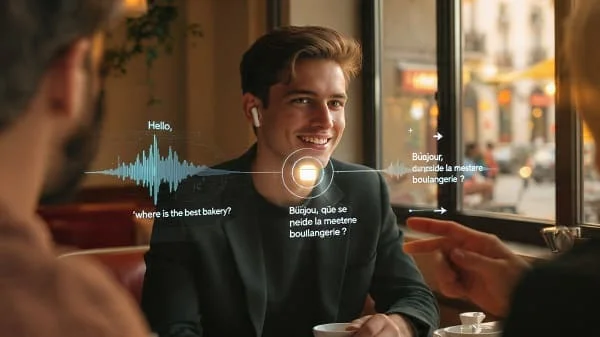
Can you use Apple AirPods to translate a conversation? Yes—when you pair them with a translation app on your phone. AirPods themselves don’t translate; they act as your mic and speakers so you can talk and hear translations without staring at the screen. This guide walks you through the best ways to use AirPods with Apple’s Translate app (and popular alternatives), how to tune Conversation Mode for clarity, what to do offline, and how to avoid common snags in busy spaces like cafés, classrooms, and service counters.
What AirPods can (and can’t) do for translation
AirPods are high‑quality wireless headphones with microphones. They do not translate by themselves. Translation happens in an app (on iPhone/iPad/Android/Mac) that listens, converts speech to text, translates, and speaks or shows the result. AirPods simply make this hands‑free and easier to hear.
- AirPods = input/output hardware (comfortable mics and speakers, noise control, quick switching).
- Translation app = language brain (speech recognition, translation engine, text‑to‑speech).
With the right setup, you can put your phone between you and another person, wear AirPods, and have translations read into your ear while they see (and hear) their side on screen.
Quick start: 60‑second setup for face‑to‑face translation
- Pair AirPods to your iPhone (open the case → tap Connect) and wear them.
- Open Translate (Apple) or Google/Microsoft Translator.
- Choose your two languages (e.g., English ⇄ Spanish) and switch to Conversation mode.
- Place your iPhone on the table between you; point the mic toward the other person.
- Speak in short sentences. Let the app finish each line before continuing.
That’s enough to hold a basic conversation in a shop, office hours, or at an airport counter.
Requirements checklist
- AirPods (any modern model: AirPods, AirPods Pro, AirPods Max)
- iPhone (iOS 15+ recommended). iPad/Mac/Android also work—see platform tips below.
- Translation app: Apple Translate, Google Translate, or Microsoft Translator
- Good internet or downloaded offline language packs if your app supports them
- Reasonably quiet space; on AirPods Pro/Max, use Transparency or ANC wisely
Prep before an important chat: charge AirPods, test mic and volume, download language packs, and do a 30‑second sample line to check lag.
Use Apple’s Translate app with AirPods
Apple’s Translate is built into iPhone in many regions and supports text, voice, and Conversation mode. It’s the most “iOS‑native” experience with AirPods.
Setup
- Pair AirPods (Settings → Bluetooth) and wear them.
- Open Translate; pick two languages (e.g., English ⇄ Japanese).
- Tap Conversation and enable Auto Translate if available.
- Confirm audio input/output is set to AirPods (Control Center → long‑press the audio tile).
- Place the iPhone where it can hear the other person clearly.
Tips
- Speak in short clauses and pause; accuracy drops with long, nested sentences.
- If Auto‑detect misfires in a noisy room, switch to manual turn‑taking (tap to speak for each side).
- Use Transparency mode (AirPods Pro/Max) to hear the room naturally while receiving translation audio.
- Download offline packs (if available) before flights or in low‑connectivity areas.
Use Google Translate or Microsoft Translator with AirPods
These apps offer broad language coverage, robust conversation features, and good offline options.
Google Translate (iOS/Android)
- Install the app; select two languages.
- Tap Conversation and set Auto detection.
- Wear AirPods; speak at a normal pace. Keep the phone 10–30 cm from the other speaker.
- Use the speaker icon to replay a line if someone missed it.
- Download offline packs for travel.
Microsoft Translator (iOS/Android)
- Install and choose languages.
- Use Conversation or Split‑screen view; each person taps to speak to reduce cross‑talk.
- For groups/classrooms, create a session code so each person joins on their device in their own language.
- Wear AirPods to hear a clear, read‑aloud translation.
Need help picking an app? See our iOS roundup for pros/cons by language pair: Best Free Translator Apps for iOS.
Tune Conversation Mode for clarity
- Mic source: make sure your iPhone is using the AirPods mic (Control Center). AirPods Pro/Max often suppress background noise better than the phone mic.
- Playback target: let translations play in your AirPods. Show the other person the on‑screen text for their side.
- Turn‑taking: in loud places, disable Auto‑detect and tap to speak for each side to prevent mixed sentences.
- Speak plainly: avoid slang, idioms, and run‑on sentences; accuracy improves immediately.
- Names/numbers: spell names slowly and confirm critical details (address, time, price) by showing the screen.
Offline packs and latency tips
Lag can make conversations awkward. These tweaks help:
- Offline language packs: faster in weak signal areas (some nuance may drop vs. online).
- Wi‑Fi over cellular: stable Wi‑Fi generally lowers latency.
- Battery health: low iPhone/AirPods battery can reduce mic quality and add delay—charge up.
- Close heavy apps: free up CPU on older devices.
- ANC vs Transparency: if ANC “pumps” in variable noise, try Transparency for more natural speech perception.
Set up, pair, and keep AirPods on the right device
- Pair quickly: open the case near iPhone → tap Connect. Give them a clear name (e.g., “Travel AirPods”).
- Prevent auto‑hopping: Settings → Bluetooth → AirPods → set “Connect to This iPhone” to When Last Connected to This iPhone during sessions.
- Audio routing: in Control Center → long‑press audio tile → confirm AirPods are selected for input/output.
- Mic auto‑switch: leave on Automatic unless you need to force left/right for a better mic.
Android, Mac, and iPad workflows
Android + AirPods
Pair AirPods as normal Bluetooth headphones. Use Google or Microsoft Translator in Conversation mode. Keep the phone closer to the other speaker, and consider enabling any device mic‑enhancement settings.
Mac + AirPods
In a browser, use Google Translate. Turn on Dictation (System Settings → Keyboard) if needed. For video calls: summarise in the target language via text translation; avoid recording without consent.
iPad + AirPods
Use Apple Translate (if available) or third‑party apps. The larger display is great for split‑screen conversations in classrooms or at service counters.
Real‑world uses: travel, education, customer support
Travel
- Airports/trains: place your phone on the counter, split‑screen conversation on, AirPods in. Speak in short turns.
- Restaurants/markets: ask one question per turn; replay a line with the speaker icon if needed.
- Emergencies: pre‑download offline packs; verify address/time on screen.
Education
- Office hours: handle quick clarifications with AirPods + Translate; note the main points afterward.
- Language exchange: alternate languages and practice pronunciation; keep turns short to reduce delays.
Customer support & retail
- Service desks: iPad split‑screen + AirPods for the agent; both sides can see and hear their language.
- Field work: keep one AirPod in to hear translations while maintaining situational awareness.
Accessibility and inclusive communication
AirPods Pro/Max reduce fatigue with ANC and Transparency mode. Showing translations on screen supports Deaf/Hard‑of‑Hearing participants. Microsoft’s session codes let groups follow in their own language on their own devices while using AirPods as a personal audio channel.
Privacy and consent
- Consent: tell people you’re using a translation app. Use certified interpreters for legal/medical contexts.
- Cloud vs on‑device: many apps process speech in the cloud. If needed, use offline packs and read privacy policies.
- Recording laws: avoid apps that auto‑save transcripts without consent; check local rules.
- Stay supported: don’t hack call audio into translation apps—stick to face‑to‑face conversation modes.
Troubleshooting
Translations lag or freeze
- Switch to stable Wi‑Fi; move to better cellular signal; try offline packs.
- Close heavy apps; charge your phone and AirPods; reboot if lag persists.
It keeps mishearing the other person
- Disable Auto‑detect; use manual turn‑taking; move the phone closer to their mouth.
- Lower background noise; switch AirPods to Transparency mode for more natural listening.
AirPods aren’t selected as mic/output
- Control Center → long‑press audio tile → pick AirPods for both input/output.
- Settings → Bluetooth → AirPods → ensure Connected; set Mic to Automatic.
Translations sound stiff or wrong
- Try a different engine (Apple vs Google vs Microsoft).
- Speak shorter, literal sentences; avoid idioms and dialect slang.
Common mistakes (and what to do instead)
- Speaking long, complex sentences: break ideas into short clauses; pause between turns.
- Relying on Auto‑detect in noise: use manual tap‑to‑speak to avoid cross‑talk.
- Forgetting offline packs: download languages before flights or remote trips.
- Expecting call translation: most apps can’t access phone call audio—use face‑to‑face modes instead.
- Not confirming critical details: show the screen for names, addresses, dates, and amounts.
Comparison tables
Apps with AirPods: strengths at a glance
| App | Best for | Pros | Cons | Offline |
|---|---|---|---|---|
| Apple Translate | Seamless iOS use | Auto‑detect, clean UI, tight system integration | Availability varies by region/language | Limited (region‑dependent) |
| Google Translate | Broader language coverage | Fast conversation mode, strong offline options | Can be literal with nuanced phrases | Yes (many languages) |
| Microsoft Translator | Groups/classrooms | Session codes, clear read‑outs | Plainer UI | Partial |
AirPods audio settings during translation
| Setting | Use when | Effect |
|---|---|---|
| Transparency | Busy indoor spaces | Hear the room and translations together |
| ANC | Steady background noise (planes, trains) | Reduces fatigue; may need lower volume |
| manual turn‑taking | Very noisy rooms | Prevents false detection and mixed lines |
FAQs
How do I use AirPods to translate in a shop or café?
Wear AirPods, open your translation app in Conversation mode, set languages, and put the iPhone between you. In noise, switch to manual tap‑to‑speak; ask each person to speak briefly and pause.
Do AirPods translate phone calls?
No. Translation apps typically cannot access phone call audio for policy/technical reasons. Use face‑to‑face conversation modes or have the other person speak near your device while you listen with AirPods.
Which AirPods model is best for translation?
Any AirPods work. AirPods Pro/Max add ANC and Transparency which help in noise, but accuracy depends more on the app and mic placement than the model.
Can I save transcripts?
Some apps allow saving text. Get consent before storing or sharing translations and follow local privacy rules. Avoid saving sensitive conversations.
What if a language pair sounds awkward?
Try a different engine, speak more literally, and avoid idioms. If you need high‑stakes accuracy (medical/legal), use a professional interpreter.
Related reading
Want to compare translation apps before your trip? Check our guide: Best Free Translator Apps for iOS.
Conclusion
AirPods don’t translate on their own, but paired with Apple, Google, or Microsoft’s apps, they make multilingual conversations smoother and more discreet. Your basic flow is simple: wear AirPods, open Conversation mode, speak in short turns, and confirm key details on screen. With a little setup—offline packs, clear mic placement, and turn‑taking in noise—you’ll get reliable, travel‑ready translation without juggling your phone.
Note: This guide is independent and not affiliated with Apple, Google, or Microsoft. Features vary by region and software version.
Sources

Aarav Sharma — Founder & Editor, WA Translator. I publish hands‑on, privacy‑first guides on WhatsApp translation, iOS Shortcuts, and AI translators. All workflows are tested on real devices (EN↔AR) with screenshots and downloadable Shortcuts. About Aarav • Contact