

If you need a clean, reliable way to convert WhatsApp chats to PDF on iPhone—without installing extra apps—this guide is for you. You’ll learn iPhone‑only workflows that use Export Chat, Files, Print to PDF, Pages/Books, and (optionally) Shortcuts. The result is a searchable, well‑formatted PDF you can archive, share, or submit for school or work. We’ll also cover how to include or exclude media, add headers and page numbers, redact sensitive data, split very long threads into volumes, and name/organize files so you can find them later.
What you’ll learn (and when to use PDF)
PDF is the most portable way to preserve WhatsApp conversations you need to read, search, file, or submit. In this tutorial you will:
- Create a clean, searchable PDF of any WhatsApp thread using only iOS tools.
- Decide whether to include media (photos/videos) or keep the file lightweight.
- Add headers, page numbers, and date ranges for professional documentation.
- Redact personal data safely before sharing outside your device.
- Split very long chats into smaller volumes and name them consistently.
Common use cases: sharing a conversation with a teacher or manager, documenting service requests, attaching chat excerpts to a travel application, or archiving memories with family.
Requirements and quick setup
- iPhone: iOS 15+ recommended (iOS 16/17 preferred).
- WhatsApp for iOS: latest version—Export Chat is required.
- Storage: space in Files (iCloud Drive or On My iPhone). PDFs with media are larger.
- Time and privacy: budget 10–20 minutes the first time; review redaction tips before sharing.
Which method should I choose?
| Method | Speed | Layout control | Media handling | Best for |
|---|---|---|---|---|
| A) TXT → Print to PDF | Fastest | Basic | Text only (images separate) | Clean, searchable archive; long chats |
| B1) Pages | Medium | High (headers, fonts, breaks) | Manually embed images | Professional reports; custom styling |
| B2) Books | Fast | Low–Medium | Text only; export via Print | Quick reading/export to PDF |
| C) Shortcuts | Fast (after setup) | Medium (auto header/page #) | Text; optional appendices | Repeatable weekly/monthly exports |
Method A: Export TXT → Print to PDF (no extra apps)
This is the fastest, most privacy‑friendly path. You export a chat as text, then generate a PDF with the iOS print preview.
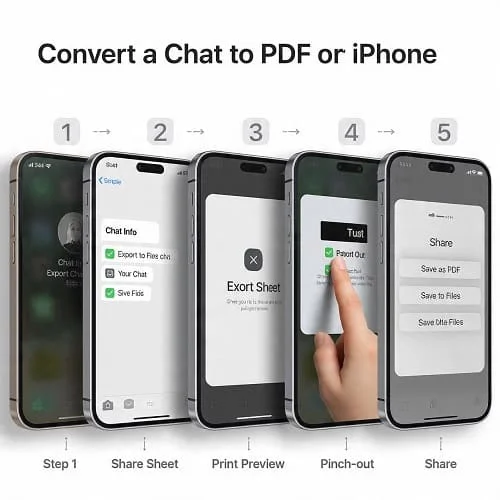
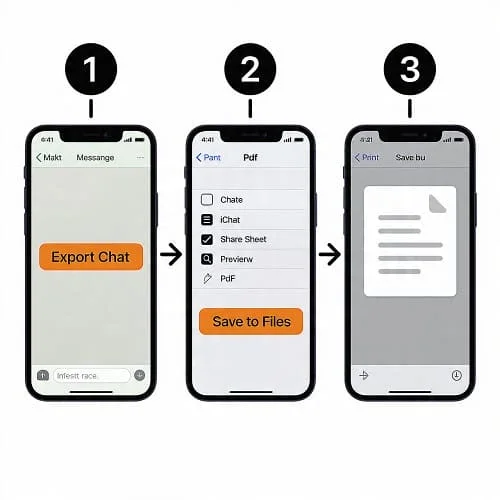
Step 1 — Export the chat
- Open WhatsApp → open the chat.
- Tap the chat name → Export Chat.
- Select Without Media (lightweight and searchable).
- In the Share Sheet, tap Save to Files → choose a folder → Save.
You’ll get a Chat.txt. If it’s a ZIP, tap it in Files to extract the TXT.
Step 2 — Convert TXT to PDF
- Open Files → locate
Chat.txt. - Long‑press the file → Share → Print.
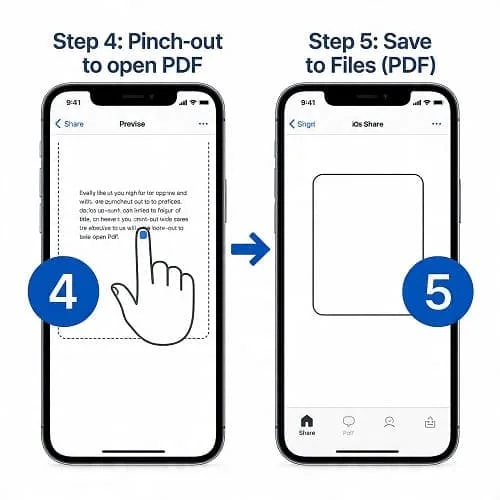
- On the print preview, pinch‑out (zoom in) on the first page to open the PDF view.
- Tap Share → Save to Files → rename (e.g.,
2025‑03‑Chat‑Alex‑Vol‑1.pdf) → Save.
Step 3 — Optional: annotate or sign
In the full‑screen PDF, tap Markup to highlight, comment, or sign. Re‑export if you want to flatten annotations.
Why this method works: it keeps text searchable, files small, and everything on‑device. No third‑party apps or servers involved.
Method B: Share to Pages/Books for cleaner layout
Use Pages if you want headers, fonts, and page breaks. Use Books if you just want a quick read + export to PDF.
Option 1 — Pages (precise formatting)
- Export the chat as in Method A (Without Media).
- Open Pages → Blank document → Insert → From Files → pick
Chat.txt. - Apply styles: Heading for date separators, Body for messages, bold sender names, smaller font for timestamps.
- Insert a header with chat name and date range; add page numbers in the footer.
- Export to PDF (… → Export → PDF) → Save to Files.
Option 2 — Books (fast reading + PDF)
- In Files, open
Chat.txt→ Share → Books. - In Books, open the item → Share/More (…) → Print → pinch‑out → Save to Files.
Method C: Shortcuts automation (one‑tap PDF)
If you export regularly, a Shortcut can add a header, page numbers, and a dated filename in one go.
Create the Shortcut (blueprint)
- Open Shortcuts → + → name it “Chat → PDF”.
- Add actions:
- Select File (Allowed Types: Text; initial folder = your chat exports).
- Get Contents of File (Text).
- Ask for Input (e.g., “Chat Name & Date Range”).
- Combine Text (prepend the header; add line breaks).
- Make PDF (A4/Letter; Include Page Numbers: On).
- Save File (Ask Where to Save = On; default name includes date).
Enhancements: “Split Text” by dates to auto‑chunk; “Repeat with Each” to create volumes; “Show in Share Sheet” to run directly from Files.
Use the Shortcut
- Export chat → Save to Files.
- Run Chat → PDF → pick the TXT → add a header like “Alex — Jan–Mar 2025”.
- Save the generated PDF to your archive.
With or without media? Smart choices
Choosing “Include Media” saves a ZIP with Chat.txt plus a Media folder (photos/videos). Images aren’t auto‑embedded in the text; you add them if needed.
| Export option | PDF size | Pros | Considerations | Suggested use |
|---|---|---|---|---|
| Without Media | Small | Fast; searchable; stable | No inline images | Most archives, audits, quick sharing |
| With Media | Large (ZIP) | Keeps original files | Manual image embedding for PDF | Receipts, documents, when visuals matter |
To include photos in the PDF: Export with media → unzip in Files → open Pages → insert Chat.txt → add only essential images inline or as an “Image Appendix” at the end → export to PDF. For authenticity, attach the original images as a separate ZIP alongside the PDF.
Formatting: headers, page numbers, date ranges
For professional PDFs, add clear identity and pagination:
- Header: “Chat with Alex — Jan 5 to Mar 2, 2025 — iPhone export”.
- Footer: page numbers (e.g., “Page 1 of 36”); optional confidentiality note.
- Date separators: add a simple rule (“— 12 Jan 2025 —”) every few pages or at month changes.
- Fonts: keep timestamps readable (monospace fine); bold sender names for scanning.
- Page size: A4 (international) or Letter (US/Canada); narrow but readable margins.
Front sheet template: store a one‑page cover in Files with fields (chat name, date range, purpose, prepared by) and insert as page 1 when needed.
Redaction and privacy checklist
Chats often include emails, addresses, IDs. Redact before sending:
- Work on a copy: duplicate the PDF and redact the copy, not the original.
- Markup → black boxes: cover sensitive data; re‑export/print to PDF again to flatten layers so text can’t be selected under the boxes.
- Remove metadata: re‑export from Pages/Books or use a desktop tool if required.
- Share securely: company storage, encrypted mail, or expiring links; avoid public shares.
GDPR/compliance notes
- Lawful basis: have a legitimate purpose to export/share; get consent if required.
- Minimize data: export only what’s necessary; redact before external sharing.
- Retention: store in approved locations; set review/deletion reminders.
- Cross‑border: for GDPR, prefer EU‑hosted storage or approved clouds; use encryption.
- Subject rights: be prepared to honor requests for access/correction/deletion where applicable.
Very long chats: splitting into volumes
Years‑long threads can produce 100+ pages. Split by date range to keep files fast and readable:
- In WhatsApp, use the chat Search (tap chat name → Search) to jump by month/keyword and export by sections if you prefer.
- Or export once as TXT, then in Shortcuts use Split Text by date markers (e.g., “2024”) to create chunks.
- Name consistently:
Chat‑Alex‑2023‑H1.pdf,Chat‑Alex‑2023‑H2.pdf, etc.
Searchability, OCR, and future‑proof PDFs
- Prefer text‑based exports (TXT → PDF) over screenshots. Text is searchable, selectable, and compact.
- If you only have screenshots, consider OCR on a Mac/desktop so the PDF becomes searchable.
- Embed only essential images inline; keep the rest as a separate ZIP appendix.
Optional: translate your export
- Safest route: translate the TXT first (e.g., DeepL or your approved enterprise tool), then create PDFs. For sensitive data, use tools covered by your privacy policy.
- Produce two PDFs—original and translated—and label clearly (e.g.,
…‑EN.pdf,…‑ES.pdf).
Naming, storage, and backup strategy
Consistent names save hours later. A simple structure:
/Chats/
  /Personal/
    2025-03-Chat-Alex-Vol1.pdf
    2025-03-Chat-Alex-Images-Vol1.zip
  /Work/
    2025-02-Project-Omega-Client-Thread.pdf
- File names: year‑month, participant, volume.
- Backups: keep in iCloud Drive and a secondary encrypted drive/cloud with retention rules for work.
Troubleshooting: common issues (and fixes)
“Export Chat” is missing
Update WhatsApp. On managed work phones, admins may restrict exports.
ZIP won’t open in Files
Move the ZIP to “On My iPhone” and unzip. If it fails, unzip on a Mac and AirDrop the TXT back.
Print preview is blank
Close background apps, free storage, and try again. Extremely large TXT files can exhaust memory—split the chat first.
PDF is too large
Export without media; embed only essential images; place the rest in a separate ZIP appendix.
RTL/non‑Latin text looks wrong
Use Pages and a font with full script support; check punctuation and numerals. If issues persist, create the PDF on a Mac.
Emojis/reactions appear odd
Update WhatsApp; re‑export. Emojis survive TXT; image reactions become text markers.
Dates/time zone off
Check iOS Date & Time and WhatsApp locale; re‑export after adjusting.
FAQ
Can I convert group chats the same way?
Yes. The process is identical. Expect larger files—split by month/quarter for readability.
Is the PDF legally valid?
It depends on your jurisdiction and the use case. Use the plain‑text path for clarity, add a header with date range, and keep original TXT and media (with timestamps) to support provenance.
Will emojis and attachments be preserved?
Emojis are preserved in TXT. Attachments are saved separately when exporting with media; insert selected images in Pages or include the originals as a separate ZIP.
Does this work on iPad?
Yes—the Files, Print, Pages, Books, and Shortcuts steps are the same on iPadOS.
Can I automate monthly exports?
Partially. You still trigger the WhatsApp export, but Shortcuts can handle naming, headers, page numbers, and saving in one tap. Set a monthly reminder to stay current.
Can I password‑protect the PDF on iPhone?
Files doesn’t add passwords to arbitrary PDFs. If needed, add a password on a Mac (Preview/Acrobat) or your approved enterprise tool, then share via secure channels.
Trusted resources
- WhatsApp FAQ: Export your chat history (iPhone)
- Apple Support: Use the Files app on iPhone
- Apple Support: Save and mark up PDFs on iPhone
- Apple Support: Shortcuts User Guide
- WhatsApp: Security and privacy overview
Bonus tips to save time
- Create a “Chats” folder in iCloud Drive and save all exports there—Shortcuts can default to it.
- Use “Without Media” first to keep PDFs small and searchable; attach a ZIP of essential images when required.
- Add a cover page (chat name, date range, context) for work/school submissions.
- Consider PDF/A for long‑term archive—produce the initial PDF on iPhone, then convert to PDF/A on a desktop tool.
Related guide
If you also need to keep photos organized, see: Auto‑Save WhatsApp Photos to iCloud Drive (No Apps). It complements this PDF workflow by managing media separately.

Aarav Sharma — Founder & Editor, WA Translator. I publish hands‑on, privacy‑first guides on WhatsApp translation, iOS Shortcuts, and AI translators. All workflows are tested on real devices (EN↔AR) with screenshots and downloadable Shortcuts. About Aarav • Contact