

If you want to auto‑save WhatsApp photos to iCloud Drive on iPhone without installing extra apps, you can. The trick is to use only Apple’s built‑in pieces: WhatsApp → Photos → Shortcuts → Files (iCloud Drive). This guide walks you through a dependable setup, including per‑chat control, smart file naming, simple de‑dupe, optional automations (no prompts), and privacy/retention best practices. By the end, you’ll have a repeatable, first‑party pipeline that survives iOS updates and keeps your media organized where you need it.
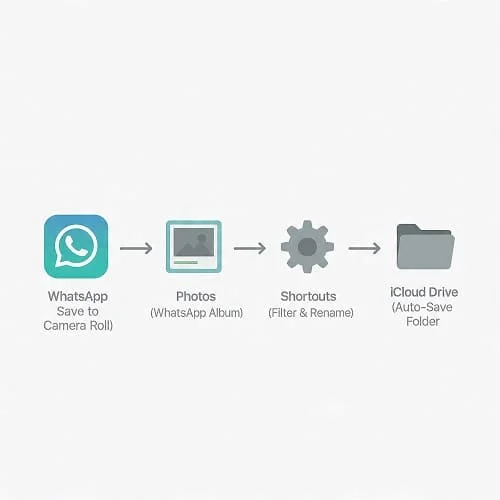
How this works (and why it’s “No Apps”)
iOS does not allow third‑party apps (like WhatsApp) to silently drop files into iCloud Drive. The approved pattern is:
- Let WhatsApp save incoming photos to the Photos app (Camera Roll / WhatsApp album).
- Use Shortcuts to find recent WhatsApp photos and copy them to a folder in iCloud Drive.
- Run this on a schedule (automatic) or on demand (Siri/Back Tap/Action Button).
Everything stays first‑party (WhatsApp + Photos + Shortcuts + Files), privacy‑aware, and stable across iOS releases.
Requirements and quick prep
- iPhone on a recent iOS (Shortcuts is built‑in).
- WhatsApp for iOS (latest version installed).
- Enough iCloud Drive storage (separate from iCloud Photos quota management).
- Optional: iCloud Photos enabled if you also want your Camera Roll syncing. Not required for this workflow.
Note for work phones (MDM): administrators may restrict automations or background actions. If something won’t run, check with IT.
WhatsApp settings you must enable
Turn on “Save to Camera Roll,” either globally or only for important chats.
- Global: WhatsApp → Settings → Chats → Save to Camera Roll ON.
- Per chat: open a chat → tap name → Save to Camera Roll → Always for priority chats (others can remain Default/Never).
After this, Photos will keep a “WhatsApp” album with newly saved items. Our Shortcut will target that album.
Create your iCloud Drive destination
Open Files → iCloud Drive → create a folder such as WhatsApp Auto‑Save. If you like, pre‑create a year/month structure:
/iCloud Drive/
  WhatsApp Auto‑Save/
    2025/
      03/
      04/
Build the Shortcut (step by step)
This Shortcut finds recent WhatsApp photos, standardizes filenames, and copies them to your iCloud Drive folder.
- Open Shortcuts → tap + → name it “Auto‑Save WhatsApp Photos to iCloud Drive”.
- Add Find Photos:
- Album: WhatsApp
- Media Type: Photos
- Date Taken: in the last 1 hour (adjust to your schedule)
- Sort by Date Taken (Newest First); Limit: Off
- Add If: If Count of Photos is 0 → Stop Shortcut with “No new WhatsApp photos.”
- Add Repeat with Each (Photos). Inside:
- Get Details of Images → Date Taken
- Format Date → custom:
yyyy-MM-dd_HH-mm-ss - Convert Image → JPEG (Quality ~0.85). Optional: Preserve Metadata Off to reduce sensitive EXIF.
- Save File → Service: iCloud Drive → Destination: your folder → Ask Where to Save Off → Filename:
WA_[Formatted Date].jpg→ If File Exists: Keep Both → Make New Folders On.
- After the loop: Show Notification → “Saved [Count] photo(s) to iCloud Drive.”
Result: each run picks up the past hour’s WhatsApp photos, names them consistently, and copies them to iCloud Drive. Adjust the time window to match your schedule (e.g., “last 10 minutes” for an hourly automation).
Make it automatic: personal automations
Create a Shortcuts Personal Automation to run your Shortcut in the background. Reliable triggers:
| Trigger | Battery impact | Prompts? | Notes |
|---|---|---|---|
| Time of Day | Low | No (Ask Before Running off) | Hourly or at fixed times (e.g., 9:00, 13:00, 18:00) |
| When Charging | Low | No | Good for battery care; runs while on power |
| App Opened (WhatsApp) | Low | No | Runs each time you open WhatsApp |
| Arrive/Leave (Location) | Low–Med | No | Requires location permission; handy for home/office |
Set “Ask Before Running” OFF and (if offered) “Notify When Run” OFF. Match your Find Photos time window to the trigger cadence—e.g., hourly trigger → “last 60 minutes”.
One‑tap or voice triggers (Siri, Back Tap, Action Button)
- Siri: in the Shortcut’s info → Add to Siri → record “Save WhatsApp photos”.
- Back Tap: Settings → Accessibility → Touch → Back Tap → Double Tap → your Shortcut.
- Action Button (iPhone Pro): Settings → Action Button → Shortcuts → your Shortcut.
- Home Screen widget: Add the Shortcuts widget and pin your Shortcut for a single tap.
Smart file naming and simple de‑dupe
Consistent names sort well and reduce duplicates.
- Pattern:
WA_yyyy-MM-dd_HH-mm-ss.jpgsorts by time and avoids odd characters. - Keep Both: if a name already exists, iOS adds
(1),(2), etc.—useful when multiple photos share the exact timestamp. - Narrow time window: only process “last 60 minutes” (or your interval) so each automation run picks up a unique slice.
- Advanced (optional): keep a small JSON log of saved names in iCloud Drive and skip matches in future runs.
Useful filters (date window, media type, per‑chat)
- Photos only: in Find Photos → Media Type = Photos. (Create a second Shortcut if you want to handle videos separately.)
- Date window: frequent runs → “last 30–60 minutes”; nightly runs → “last 24 hours”.
- Per‑chat control: in WhatsApp set “Save to Camera Roll → Always” for priority chats; leave others as Default/Never.
- No WhatsApp album? Some iOS builds expose a “Source App” filter in Shortcuts; use it if available. Otherwise rely on the album + per‑chat setting.
Storage, privacy, and battery tips
- iCloud Drive space: archival folders can grow quickly. Organize by year/month and clean up on a schedule.
- iCloud Photos vs iCloud Drive: Photos syncs your Camera Roll; Drive is for project folders and easy sharing. This workflow uses Drive so you can share just the folder you need.
- Battery: time‑based and app‑opened triggers are light. If you prefer, run only when charging.
- Privacy: everything remains on your device/iCloud account. Control which chats save to Camera Roll and where files go.
Compliance & GDPR (quick notes)
- Have a lawful basis to store/share photos; get consent where required.
- Minimize: copy only what you need; avoid backing up sensitive media unnecessarily.
- Retention: set reminders to review and delete older folders per your policy.
- Share securely: iCloud links with permissions, encrypted email, or organization‑approved channels.
Optional: OCR, translate, and share
- OCR: iOS Live Text or Shortcuts’ Recognize Text can extract text from receipts/doc scans for searchability.
- Translation: paste extracted text into your approved translation tool. Don’t upload confidential data without authorization.
- Mail/Gmail/Outlook: From Files, share selected images or a zipped folder; large sets are better as iCloud Drive links.
Troubleshooting
No “WhatsApp” album in Photos
Turn on WhatsApp → Settings → Chats → Save to Camera Roll, then save a test image. Force‑quit Photos or reboot if the album doesn’t appear.
Automation didn’t run
Shortcuts → Automation: ensure “Ask Before Running” is OFF; run the Shortcut manually once; check Focus/Low Power modes; verify MDM policies.
It saved videos but I only want images
Edit Find Photos → Media Type = Photos. Create a separate Shortcut for videos if needed.
Filenames look random
Disable Auto Name and set filename to WA_[Formatted Date].jpg. iOS will append (1), (2) on collisions.
Can I move instead of copy?
Shortcuts copies to iCloud Drive. Deleting from Photos typically requires manual confirmation. Most users keep originals in Photos and treat Drive as a project/archive copy.
Offline?
Yes. The Shortcut saves locally to iCloud Drive and syncs when online.
Run on every new notification?
No. iOS doesn’t expose notification content. Use time‑based or app‑opened triggers.
Organize by month automatically
Add another formatted date (yyyy/MM), enable “Make New Folders,” and set destination to /WhatsApp Auto‑Save/[yyyy]/[MM].
FAQs
Is this truly “no apps”?
Yes—no third‑party apps. The workflow uses only WhatsApp, Photos, Shortcuts, Files (iCloud Drive), and system automations.
Will this affect my iCloud Photos storage?
iCloud Photos and iCloud Drive are separate services. This workflow uses Drive. If you also use iCloud Photos, your Camera Roll still syncs as usual.
How often should I run it?
Hourly is common. If volume is low, twice a day might be enough. Prefer charging triggers if you want zero battery impact.
Can I include captions or sender info?
This workflow copies image files; WhatsApp captions aren’t embedded in photos. If captions matter, consider exporting the chat text to PDF and attaching the image folder (see related guide below).
Related guide
If you also need a clean record of messages, see: Convert WhatsApp Chats to PDF on iPhone (No Apps). It pairs well with this photo‑only pipeline.
Conclusion and takeaways
- Enable “Save to Camera Roll” in WhatsApp, then use a small Shortcut to copy new WhatsApp photos to iCloud Drive.
- Automate with Time of Day / When Charging / App Opened triggers; turn off “Ask Before Running”.
- Use date‑based filenames for clean sorting; narrow the time window to avoid duplicates.
- Apply per‑chat settings to control which conversations are archived.
- Share via iCloud Drive links or secure email; set retention reminders for privacy.
Once set up, you’ll have a zero‑maintenance, first‑party workflow that quietly keeps your WhatsApp photos organized and ready to share—no extra apps required.

Aarav Sharma — Founder & Editor, WA Translator. I publish hands‑on, privacy‑first guides on WhatsApp translation, iOS Shortcuts, and AI translators. All workflows are tested on real devices (EN↔AR) with screenshots and downloadable Shortcuts. About Aarav • Contact