
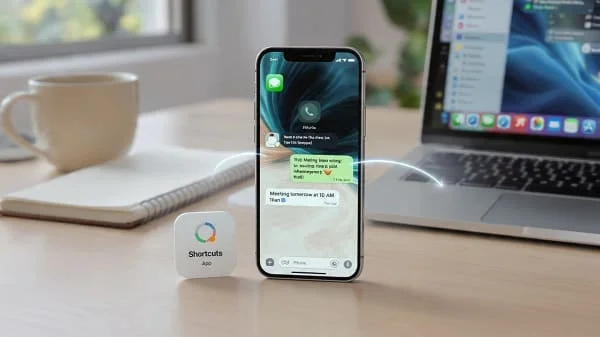
You can’t make an iPhone auto‑send a WhatsApp message at an exact time—Apple blocks that for safety. But you can schedule a draft that opens in WhatsApp with your text already filled in, right when you need it. This guide shows how to schedule WhatsApp messages on iPhone (without jailbreak) using Apple Shortcuts and Personal Automations. You’ll build a reliable shortcut, attach a time‑based trigger, and add a reminders “safety net” so you never miss the moment—all while staying within Apple and WhatsApp policies.
What “scheduling WhatsApp on iPhone” really means
On iOS, third‑party apps cannot send messages automatically in the background. Any tool that claims otherwise is using unsupported methods and risks your account. What you can do:
- Use Shortcuts + Personal Automation to open WhatsApp at a set time with a pre‑filled message to a chosen contact.
- Turn off “Ask Before Running” (when available) so the automation can start silently. You still tap Send in WhatsApp.
- Add a Reminders/Calendar notification as a backup in case your iPhone is locked or in a Focus mode.
Bottom line: you can reliably land on the correct chat with the message ready to go at the right time—then send it with one tap.
Requirements and preparation
- iPhone with current iOS (Shortcuts app is built‑in).
- WhatsApp installed and signed in on the same device.
- Recipient number in full international (E.164) format, digits only (e.g.,
+44 7700 900123→447700900123). - Optional: one or two message templates (birthday wish, check‑in, delivery note) you reuse often.
Note: On managed (work) phones, some Shortcuts features or URL schemes can be restricted by your admin (MDM). If something doesn’t work, try the web‑based link (wa.me) and check with IT.
Method 1: Shortcuts + Personal Automation (step by step)
This method builds a one‑time “link builder” shortcut that opens a WhatsApp chat with your message already filled in, then connects it to a time‑based automation.
Part A — Build the scheduling Shortcut
- Open Shortcuts → All Shortcuts → tap +.
- Add Ask for Input → Prompt: “Message to send”. This lets you set the text at run time (you can hard‑code later).
- Add Text → type the recipient number in E.164 digits only (no
+, spaces, dashes). Example:14155552671. (Rename the output variable to Phone for clarity.) - Add Encode Text → Input: the message from step 2 → Encoding: URL (this safely handles spaces, emojis, and line breaks).
- Add Text → build the link:
Use the variable picker to insert Phone and the Encoded Message.https://wa.me/<Phone>?text=<EncodedMessage> - Add Open URLs → Input: the link from step 5.
- Rename the Shortcut (e.g., WA Scheduled Draft).
Test it once: run the Shortcut, type a test message, and make sure WhatsApp opens with your text in the chat field.
Part B — Attach a Personal Automation (time‑based)
- Shortcuts → Automation tab → New Automation → Personal Automation.
- Choose Time of Day → set the time → pick Once/Daily/Weekly → Next.
- Add Action → Run Shortcut → choose WA Scheduled Draft.
- Tap Next → turn Ask Before Running Off (if available) → confirm Don’t Ask → Done.
At the scheduled time, your iPhone opens WhatsApp with the draft filled in. Tap Send. If a banner appears (“Automation ready to run”), tap it to proceed.
Why this works (and stays compliant)
WhatsApp supports “click‑to‑chat” links (wa.me) that open a chat and pre‑fill the text field. Shortcuts builds that link on schedule; you still confirm the final send—keeping everything within Apple and WhatsApp rules.
Add reusable templates (optional, faster)
If you often send similar messages, add a simple template picker so you don’t have to type at run time.
- In your Shortcut, insert a Choose from Menu action before “Ask for Input”. Add items like “Birthday”, “Running late”, “Follow‑up”.
- For each item, set a variable TemplateText (e.g., “Happy Birthday! 🎉 Wishing you a great day!”).
- If the template includes placeholders (e.g.,
{name},{time}), add Ask for Input and Replace Text to fill them only when needed. - Encode the final text (URL) and build the link as before.
Want voice speed? Create a second Shortcut per template + per recipient and assign a Siri phrase or Back Tap trigger for true one‑tap drafting. If you need a full template system with menus and favorites, see our guide on one‑tap templates (linked below).
Recurring, multi‑contact, and smart variations
Recurring schedules
- Open the automation and set Daily/Weekly. For monthly/annual dates (birthdays), set a Calendar alert too (see “Method 2”) as backup.
Choose the recipient at run time
- Add a Dictionary like
{"Alex":"14155552671","Team":"447700900123"}. - Add Choose from List (Alex, Team, Other) → if Other, Ask for Input for a one‑off number.
- Use Get Dictionary Value to map the choice to the E.164 number.
Multiple recipients
Click‑to‑chat targets one number at a time. If you must message several people:
- Use a WhatsApp group and open that chat instead (manual send still required).
- Make multiple automations at different times.
- Or run the Shortcut repeatedly from a widget/Siri.
Run only when it makes sense
- Add an If block to skip during Sleep/Work Focus and Show Notification to run later.
- Use Battery Level/When Charging to avoid firing at low power.
- Traveling? See the time zone tips in the Advanced section.
Method 2: Reminders/Calendar safety net
Sometimes iOS shows a banner instead of launching the app (locked device, Focus mode). Set a backup reminder so you won’t miss the time:
- Reminders → New Reminder → “Send WhatsApp to Alex”.
- Add the link in the notes (e.g.,
https://wa.me/14155552671?text=Happy%20Birthday!). - At the alert, tap the link; WhatsApp opens with the text ready.
This “belt and suspenders” approach is especially useful for early‑morning messages or when your phone is usually locked.
Method 3: Third‑party apps—what to expect
Scheduling apps can queue messages and ping you at the right time, but iOS still requires your tap to send in WhatsApp. They’re helpful for planning and batching, not for true hands‑free sending.
- Use them for reminders, recurring schedules, and a queue view.
- For business at scale, the official WhatsApp Business API is the compliant route (outside the scope of this guide).
Advanced tips: time zones, Focus, delays, attachments
Time zones
- Create a Calendar event in your local time and make a Calendar‑based automation “At Event Time”.
- Or use Get Current Location + Get Details of Locations to detect offset and adjust with a short Wait before opening WhatsApp.
Focus modes and delays
- Add an If block: if Sleep/Work Focus is on, Show Notification and Stop This Shortcut so you can send later.
- Use a Wait 5–10 minutes if firing right at wake‑up is risky.
Attachments and media
wa.mecannot attach photos/videos. If needed, open the chat via Shortcut and attach manually.- For sharing a file at a certain time, set a Reminder with the media ready in Photos/Files so you can attach quickly.
One‑tap template system (faster everyday use)
If you send a few standard messages (running late, on my way, meeting link), build a template picker with placeholders and favorites, then assign a Siri phrase or Back Tap for instant use. Full walkthrough here: Siri Commands for WhatsApp: One‑Tap Message Templates.
Troubleshooting (common issues and fixes)
Automation didn’t run
Ensure the phone wasn’t powered off; open Shortcuts → Automation → check run history; toggle the automation off/on; run the Shortcut once manually so iOS “trusts” it.
No “Ask Before Running” toggle
Some triggers behave differently by iOS version; update iOS and recreate the automation. You can still tap the banner quickly to run.
WhatsApp opened but the text field was empty
Use Encode Text (URL) on the message before building the link. Emojis, ampersands, and new lines must be encoded.
International number not recognized
Remove +, spaces, and dashes. Example: +1 415 555 2671 → 14155552671. If wa.me is inconsistent, try whatsapp://send.
Automation fired during Sleep
Add an If block to detect Focus and reschedule/notify. Or use a Reminder set to your active hours.
I want hands‑free auto‑send
iOS does not allow auto‑sending in third‑party apps. Any workaround risks your account; avoid it.
FAQ
Can I schedule WhatsApp messages on iPhone without jailbreak?
Yes. Use Shortcuts + Personal Automations to open WhatsApp with a pre‑filled draft at the right time. You still tap Send.
Will it work if the phone is locked?
Sometimes iOS shows a banner. Tap it to run. A backup Reminder with the wa.me link ensures you won’t miss it.
Is this against WhatsApp’s rules?
No. You’re using click‑to‑chat links and Apple automations, and you still confirm sending.
Does this work with WhatsApp Business?
Yes—the same Shortcuts/Automation approach works with the Business app. For bulk/automated messaging, the Business API is the compliant route.
Conclusion and takeaways
- Build one reusable Shortcut that URL‑encodes your text and opens a WhatsApp chat via
wa.me. - Attach a Personal Automation (Time of Day), turn off “Ask Before Running” when available, and add a Reminder as a safety net.
- Use E.164 digits‑only phone numbers and test with a friend first.
- For repeat texts, add a template picker and fast triggers (Siri, Back Tap, Action Button).
- Respect iOS limits and privacy rules; avoid any app that promises hands‑free auto‑send.
Set this up once and you’ll stop missing important windows—a scheduled WhatsApp draft will be waiting for you, ready to send with a single tap.

Aarav Sharma — Founder & Editor, WA Translator. I publish hands‑on, privacy‑first guides on WhatsApp translation, iOS Shortcuts, and AI translators. All workflows are tested on real devices (EN↔AR) with screenshots and downloadable Shortcuts. About Aarav • Contact